
Free vCard QR Code Generator
Linkly makes dynamic vCard QR codes: scan one and the phone offers to save your name, photo, job title, phone number, email and website as a new contact. You fill in plain fields (no vCard syntax), and you can edit the details at any time — even after the code is printed on your business cards — without changing the QR code.
What is a vCard QR code?
A vCard is the standard file format for contact details (a .vcf file). Every Contacts app on iPhone and Android understands it. A vCard QR code is a QR code that delivers a vCard when scanned, so the person scanning gets your details straight into their address book — no typing, no spelling mistakes, no paper business card to lose.
In Linkly the same thing is called a contact card, because that is what you and the person scanning actually see: a contact, not a file format.
Static vs dynamic vCard QR codes
Most free vCard QR code generators produce a static code: the vCard text is encoded directly into the QR code itself. That is how the vCard QR code format works, and it has three problems:
- It can't be changed. New phone number or job title? Reprint everything.
- It can't be tracked. You will never know whether anyone scanned it.
- It's a dense, ugly code. A vCard is a few hundred characters, which makes a big, hard-to-scan QR code with no room for a logo.
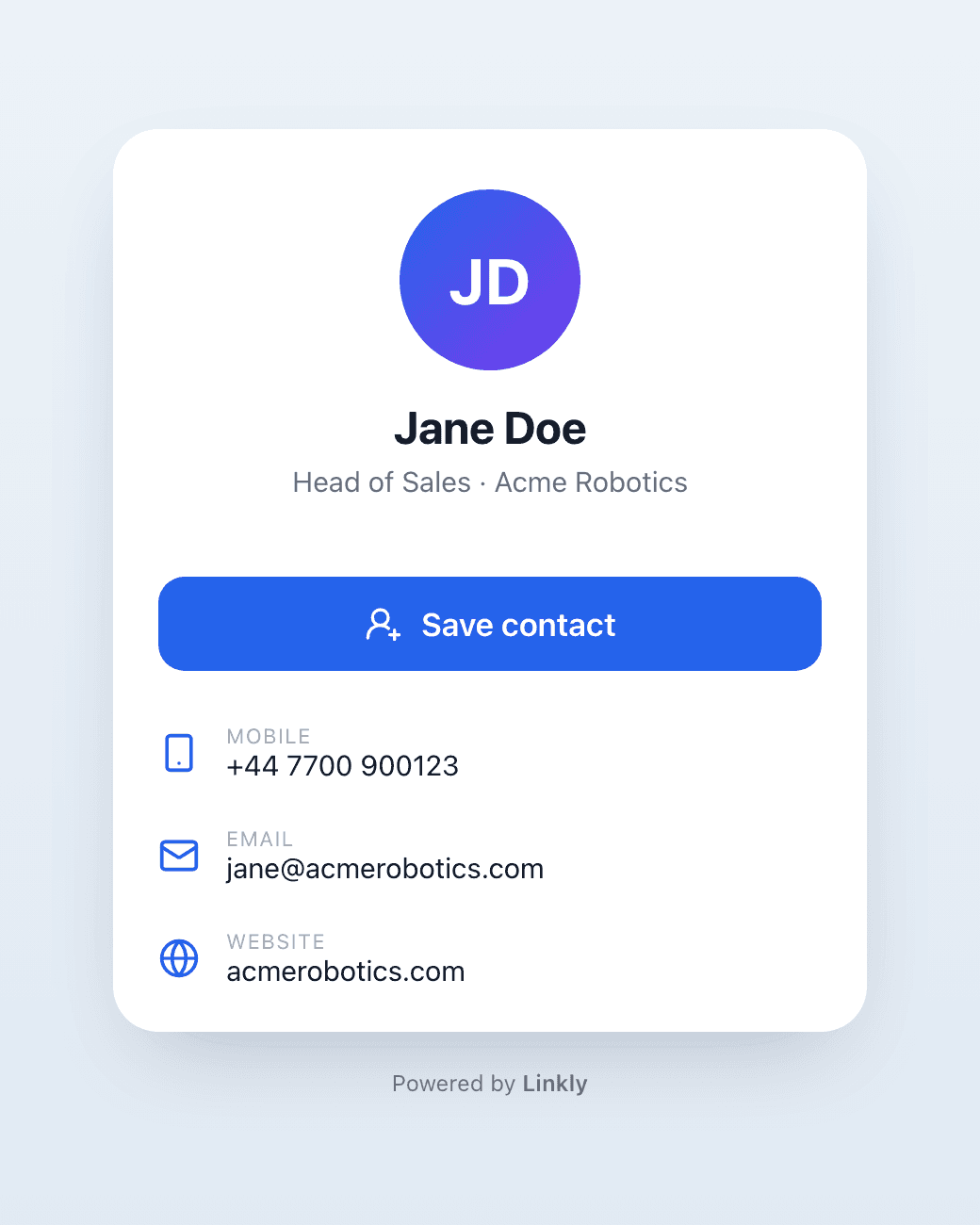
A dynamic vCard QR code points at a short link instead. The link shows a small contact page with a Save contact button. You can edit the details whenever you like, the QR code stays small enough to carry your logo, and every scan shows up in your analytics. Linkly only makes dynamic ones.
Creating a vCard QR code in Linkly
How to create a vCard QR code
Sign up to Linkly.
Linkly provides free trackable QR codes that never expire for up to 500 scans/month.
Click Create New Link from the sidebar.
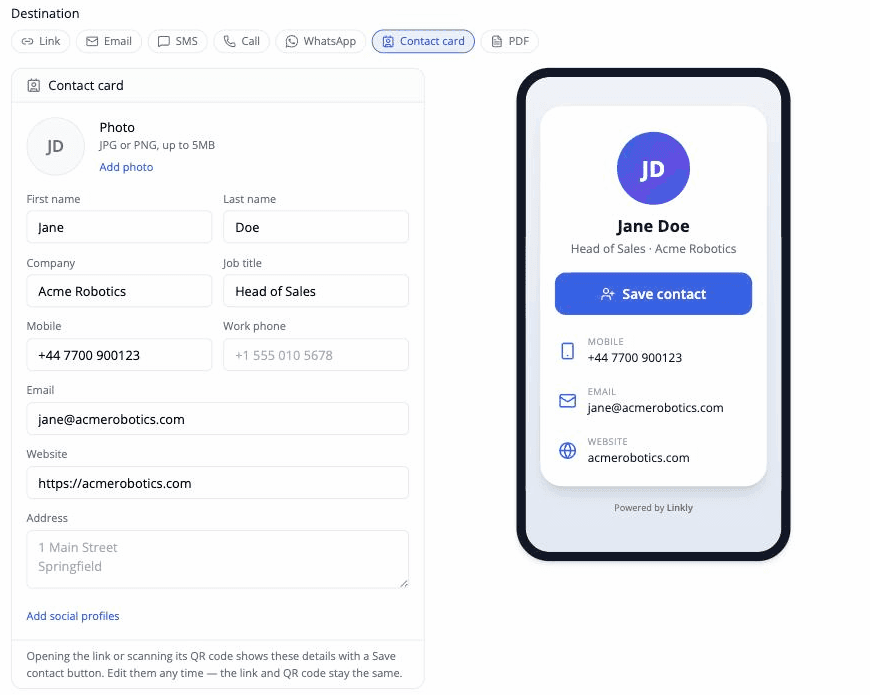
Choose the Contact card link type
Under the destination box, pick Contact card from the row of link types. The web address field is replaced by contact fields: first and last name, company, job title, mobile and work phone, email, website and address.
Add a photo (JPG or PNG) and, if you like, your LinkedIn, Instagram and X profiles under Add social profiles.
The phone on the right previews exactly what a scan will show.
Save your link
Linkly saves as you type. The link's nickname follows the contact's name, so it is easy to find later.
Customize your QR code (optional)
Click on the QR code to customize it. You can:
- Change colors to match your brand
- Add your company logo or photo
- Choose different styles (squares, dots, fluid)
See our complete guide on adding logos to QR codes for best practices.
Scan your QR code
Scan it with a phone. The contact page opens; tap Save contact and the phone offers to add the details to its Contacts app.
Test it on both an iPhone and an Android phone before printing.
Attach a domain
Optionally, we strongly recommend you attach a domain to Linkly.
This makes QR codes more reliable, and fixes almost all scanning issues.
As an additional bonus, QR codes remain on your domain, rather than ours, meaning if you decide to leave Linkly, you can take your QR codes with you.
vCard QR code with photo
Add a JPG or PNG in the form and it does two jobs. It appears on the contact page the scan opens, and it is embedded in the vCard itself, so the photo lands in the phone's Contacts app along with the name and number. Phones ignore photo links inside vCards, which is why Linkly inlines the image rather than pointing at it.
A head-and-shoulders shot works best; the photo is shown as a circle.
Saving the contact on iPhone and Android
- iPhone: tapping Save contact in Safari opens the details in a New Contact sheet. Tap Create New Contact or Add to Existing Contact.
- Android: the phone downloads the contact file and offers to open it in Contacts (or Google Contacts). One more tap saves it.
The scan itself works with the built-in camera app on both platforms. You do not need a separate QR reader.
vCard QR code for business cards
Print the QR code on the back of your business card, on your email signature, on conference badges, or on a sticker on your laptop. Because the code is dynamic, one design lasts for years: when your title or number changes, update the contact card in Linkly and every printed code keeps working.
For a team, create one contact card link per person. Each has its own QR code, short link and scan count, and attaching your own domain puts them all on your brand.
vCard QR code format
A static vCard QR code encodes text like this:
BEGIN:VCARD
VERSION:3.0
N:Doe;Jane;;;
FN:Jane Doe
ORG:Acme Robotics
TITLE:Head of Sales
TEL;TYPE=CELL:+44 7700 900123
EMAIL:jane@acmerobotics.com
URL:https://acmerobotics.com
END:VCARD
Every extra field makes the QR code denser. Linkly generates this file for you when someone taps Save contact (version 3.0, the one both iPhone and Android import most reliably), so the QR code itself only has to hold a short link.
Frequently asked questions
Is Linkly's vCard QR code generator free?
Yes. The free plan includes contact card links and QR codes with up to 500 scans a month, and the codes never expire.
Can I change my details after the QR code is printed?
Yes. Edit the contact card and every existing QR code and short link shows the new details immediately. Nothing needs reprinting. This is the difference between a dynamic vCard QR code and a static one.
Do I need to know what a vCard or .vcf file is?
No. You fill in ordinary fields — name, phone, email and so on — and Linkly turns them into a vCard when someone taps Save contact.
What happens when someone scans the code?
Their phone opens a small page showing your name, photo, title and details, with tappable phone, email and website rows and a Save contact button. Tapping the button downloads the contact; iPhones open it straight into a New Contact sheet, Android phones offer to open it in Contacts.
Can I make a QR code that adds a contact directly, without a page?
That is a static vCard QR code, and Linkly deliberately doesn't make them: they can't be edited after printing, can't be tracked, and are too dense to carry a logo. The contact page adds one tap and keeps the code editable for as long as you use it.
Can I see how many people scanned my card?
Yes. Every scan is a click on the short link, with Linkly's full tracking including country, device and time.
Can I add a photo to a vCard QR code?
Yes. Upload a JPG or PNG in the form. It appears on the contact page and is saved into the contact on the phone.
Can I add my logo to the QR code?
Yes! Click on the QR code after creating your link to access customization options including logo upload, colors, and styles.
See our guide on adding logos to QR codes for best practices and troubleshooting tips.
Can I make vCard QR codes for my whole team?
Yes. Create one contact card link per person. Each has its own QR code, short link and scan analytics. Attaching your own domain makes them all live on your brand.
Can I password-protect a contact card?
No. The contact download would bypass the password prompt, so password protection is not offered on contact card links.
Why does my QR code scan on some phones but not others?
It is likely your QR code is being blocked by a content filter.
Attach a domain - this solves almost all issues.
Do vCard QR codes expire?
Linkly's QR codes stay indefinitely unless you disable them, even on the free plan.
You can optionally set an expiration time for your links if you so choose.
Related QR code resources
- Create QR Codes - Complete guide to creating dynamic QR codes
- Mailto QR Codes - QR codes that open a pre-filled email
- Add Logo to QR Code - Make branded QR codes with logos
- SVG QR Codes - Create scalable vector QR codes
- QR Code Analytics - Track QR code performance and scans
Plan availability
Included on every plan
Get 100 short links and track 500 monthly clicks for free.