
How to Delete All Links in a Workspace
This guide explains how to delete all the links in your workspace in one go.
Important warning
All of your short links stop working straight away. Anyone who visits one sees a 404 not found page.
The confirmation page in Linkly warns that this can't be undone. Linkly does keep deleted links, so you can restore them from Deleted Links, but you should only continue if you mean to.
What gets deleted
When you delete all links:
- All short links in the workspace are deleted and moved to Deleted Links
- Short URLs no longer redirect to their destinations
- Historical traffic data and analytics are NOT deleted (preserved for your records)
- Domains, workspace users, and workspace settings are NOT affected
When to use this
Use this feature when you want to:
- Start fresh with a clean workspace
- Remove all links but keep your workspace, domains, and team intact
- Clear out test or outdated links in bulk
Only workspace admins and owners can delete all links. Members with a lower team role don't see the option.
Note: If you only need to delete some links, select them on the Links page instead. You can also disable a link temporarily without deleting it.
Step-by-step instructions
Open Workspace Settings
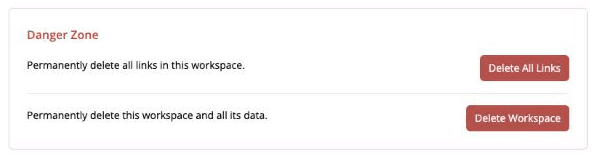
Click Settings in the left-hand menu, then Workspace Settings. Scroll down to the Danger Zone section.
Start the Deletion Process
Click the Delete All Links button. You'll be taken to a confirmation page.
Review the Confirmation Page
The confirmation page shows:
- A warning about what you're about to do
- The exact number of links that will be deleted
- What will happen when you proceed
Confirm Deletion
Type DELETE in the box, then click the red Delete all [X] links button. The button stays greyed out until you've typed DELETE. To back out, click Cancel instead.
Completion
All links are deleted straight away. You'll be taken back to the Links page and a success message confirms the deletion.
Frequently asked questions
Can I cancel this operation?
Yes. Nothing is deleted until you type DELETE and click the red button. At any point before that you can:
- Click Cancel on the confirmation page to return to Settings
- Leave the page without typing anything
What happens to my workspace after deletion?
Your workspace remains active. Your domains and custom settings are preserved. Your team members retain their access. You can immediately start creating new links. Historical analytics data remains available.
Can deleted links be recovered?
Yes. Deleted links are kept in Deleted Links and can be restored. Click Links in the left-hand menu, then Bulk and Restore Deleted, tick the links you want back, and click Restore. See how to restore deleted links for the full steps.
Restored links keep their short URL, destination and settings, and come back switched on. If you deleted a very large number of links and want them all back, email support@linklyhq.com and we can help.
Will my traffic data be deleted?
No. Historical traffic data and analytics are NOT deleted and are preserved for your records.
What if I want to delete everything in my workspace?
If you want to delete all links, domains, users, and workspace data, see our guide on how to delete workspace data. Note that this is much more destructive and will log you out.
Get 100 short links and track 500 monthly clicks for free.