
Retargeting & Remarketing Pixels: How to Add Them to a Link
A retargeting pixel — also called a remarketing pixel — lets you tag everyone who clicks your link and re-engage them later with targeted ads. Linkly fires it automatically on every click, with no code: pick a platform, paste your ID, and save.
What is a retargeting pixel?
A retargeting pixel is a small, invisible snippet of code that an ad network uses to recognise someone who has interacted with your brand. When that person clicks your link, the pixel fires and quietly adds them to a retargeting audience — a list of warm prospects you can advertise to later, for higher conversion rates and a better return on ad spend.
A pixel normally lives in the <head> of a website. Linkly fires it the moment someone clicks your short link instead — so you can retarget people from a link you share anywhere, even when you don't own the destination page.
Retargeting vs remarketing: what's the difference?
Retargeting and remarketing are two names for the same thing: showing ads to people who already engaged with you. The wording just varies by network — Google Ads calls it remarketing, while Meta, TikTok, LinkedIn and most others call it retargeting. A remarketing pixel and a retargeting pixel are therefore the same tool, and every platform Linkly supports works the same way: paste an ID, and Linkly does the rest.
Supported pixels and tags
Linkly has built-in, code-free support for every major advertising and analytics pixel. Each platform below has a dedicated integration — you only need to paste its ID:
- Meta Pixel — Pixel ID
- TikTok Pixel — Pixel ID
- LinkedIn Insight Tag — Partner ID
- X Pixel — Pixel ID
- Pinterest Tag — Tag ID
- Microsoft Advertising (UET) — UET Tag ID
- Snap Pixel — Pixel ID
- Reddit Pixel — Advertiser ID
- Google Analytics (GA4) — Measurement ID
- Google Tag Manager — Container ID
Need something else? Use the Custom tracking scripts section to paste your own <head> and <body> code for any pixel or script Linkly doesn't list natively.
Linkly is a privacy-focused platform. The retargeting is handled by the ad networks themselves, not by Linkly — Linkly simply fires the pixels automatically on each click.
Which audience does each network build?
Everyone your pixel tags is added to an audience. Each ad network gives it its own name:
- Meta Custom Audiences (using the Meta Pixel)
- TikTok audiences
- LinkedIn Matched Audiences (using the Insight Tag)
- X Tailored Audiences (using the X Pixel)
- Pinterest, Microsoft Advertising (UET), Snap and Reddit audiences
- Google Ads Remarketing Audiences (using Google Analytics or Google Tag Manager)
With Linkly, users are added to these retargeting audiences automatically as they click your links.
How to add a retargeting pixel to a link
Get your pixel ID
From your ad network (Meta, TikTok, LinkedIn, and so on), copy the ID for the pixel or tag you want to fire. Each network has its own name for it — see the list above.
Create or open a link in Linkly
In your Linkly dashboard, click Create New Link, or open an existing link to edit it.
Open the Tracking scripts & audience pixels section
Expand the Tracking scripts & audience pixels section in the link editor. You'll see an icon for each supported platform.
Choose a platform and paste your ID
Click the platform you want to fire — for example Meta, LinkedIn or X. A field appears; paste your ID into it.
You can switch on as many platforms as you like — a single link can fire several pixels at once.
Add a custom script (optional)
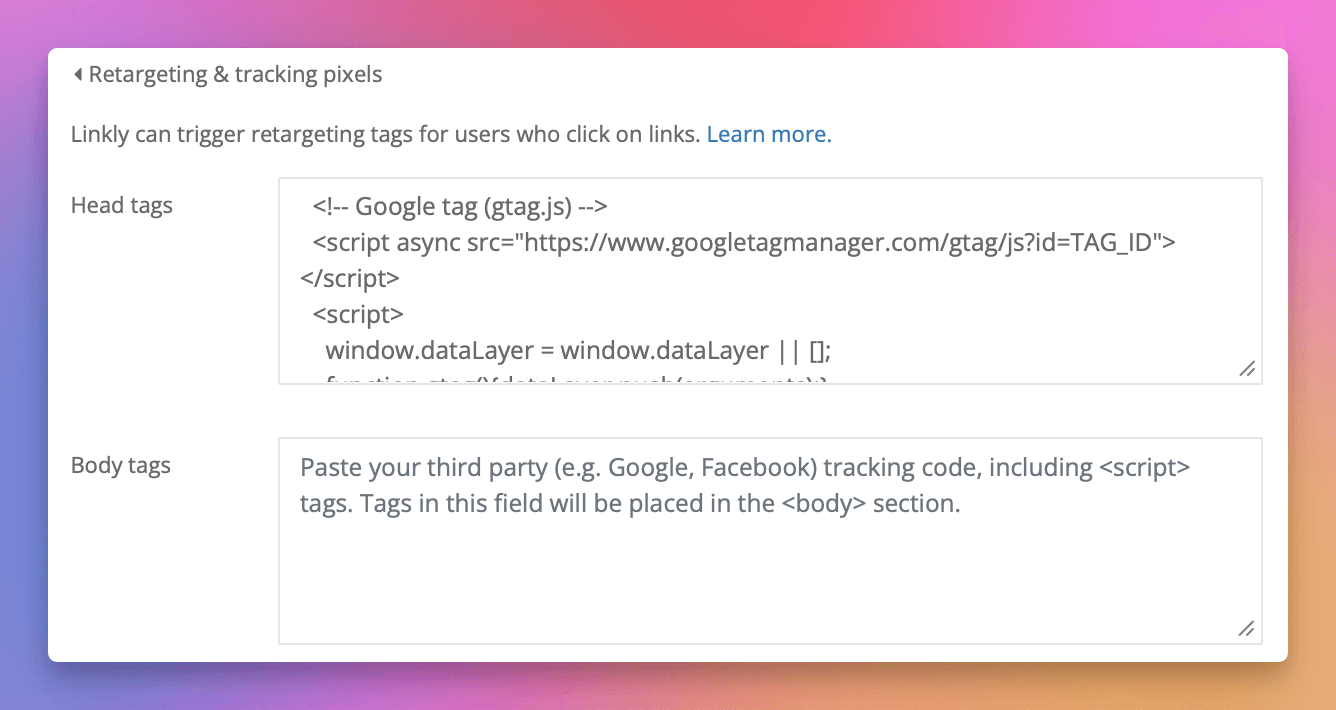
For any pixel or script Linkly doesn't natively support, expand the Custom tracking scripts section instead.
You'll see two boxes: one for head tags and one for body tags. Paste the full code — including any <script> tags — following your provider's instructions.
Save your link
Click Save. Now, whenever someone clicks this link, your pixels fire and the visitor is added to your retargeting audiences before being forwarded to the destination.
Frequently asked questions
What is a remarketing pixel?
A remarketing pixel is the same as a retargeting pixel — a small, invisible snippet of code that tags people who interact with your brand so you can show them ads later. "Remarketing" is simply Google's name for it; Meta and most other networks call it "retargeting." Linkly fires remarketing and retargeting pixels for every major network on each link click.
Is a retargeting pixel the same as a remarketing pixel?
Yes. Retargeting and remarketing describe the same technique — re-engaging people who already showed interest — and the pixels work identically. The name just depends on the network — Google Ads says "remarketing," while Meta, TikTok, LinkedIn and others say "retargeting."
What are the benefits of adding retargeting pixels to my links?
Adding retargeting pixels to your links allows you to:
- Build custom audiences of people who have shown interest in your content.
- Increase conversion rates by showing targeted ads to a warm audience.
- Improve your return on ad spend by focusing your advertising efforts on people who are more likely to convert.
- Gain valuable insights into who is clicking your links and what they're interested in.
Do I need to paste any code?
No. For every supported platform you only paste an ID, and Linkly builds and fires the full pixel for you. You only need raw code if you're adding a pixel Linkly doesn't natively support, in which case you can paste it into the Custom tracking scripts section.
Which ad networks are supported?
Linkly has built-in, code-free integrations for Meta (Facebook), TikTok, LinkedIn, X (Twitter), Pinterest, Microsoft Advertising (UET), Snap, Reddit, Google Analytics (GA4) and Google Tag Manager. For any other network you can paste a custom script into the Custom tracking scripts section, or use Google Tag Manager to manage all your tags in one place.
How do I know if my tracking pixel is working?
Most ad networks provide tools to help you debug your pixel implementation. For example, Meta has the Facebook Pixel Helper Chrome extension. You can also check your ad network's analytics to see if your audience is growing.
Will this slow down my links?
Yes, adding tracking pixels can slow down redirects. Linkly is designed to fire the pixel and redirect the user simultaneously, but there can still be a small performance impact. The tags have 500 milliseconds to fire after the DOMContentLoaded event. You can read more about slow redirects here.
Can I add more than one tracking pixel to a link?
Yes. You can switch on as many of the supported pixels as you like on a single link, and add further custom scripts in the Custom tracking scripts boxes.
What about the deprecation of third-party cookies?
The advertising industry is moving away from third-party cookies, which will affect how retargeting works. However, the technologies that Linkly uses for retargeting are based on first-party data and are not affected by this change. Ad networks are also developing new privacy-preserving technologies to continue to allow for retargeting in a post-cookie world.
Plan availability
Available on Pro and above
Get 100 short links and track 500 monthly clicks for free.