
Using Linkly with Claude
Connect Claude to your Linkly account and manage short links through natural conversation, powered by the Linkly MCP Server.
Linkly is listed in the Claude connector directory, so you can connect it in a couple of clicks from Claude on the web or Claude Desktop — no URLs to paste and no API keys. The listing has a public page at claude.ai/directory/linkly that anyone can open — no Claude account needed — to see exactly what the connector can do. If your organisation has the directory switched off, or you use Claude Code, the manual setup below still works.
What you can do
Once connected, you can ask Claude to:
- Create short links - "Create a short link for https://example.com"
- Track performance - "How many clicks did my links get this week?"
- Manage links - "Update the link called 'promo' with a new destination"
- View analytics - "Show me clicks by country for the last 30 days"
- Search links - "Find all links related to the product launch"
- Manage domains - "List my custom domains"
- Set up webhooks - "Subscribe https://my-site.com/webhook to receive click events"
How to connect Linkly to Claude
Open Linkly's directory page
Go straight to claude.ai/directory/linkly — the page is public, so you can review every tool before connecting. You can also open the Directory from Claude's sidebar and search for Linkly.
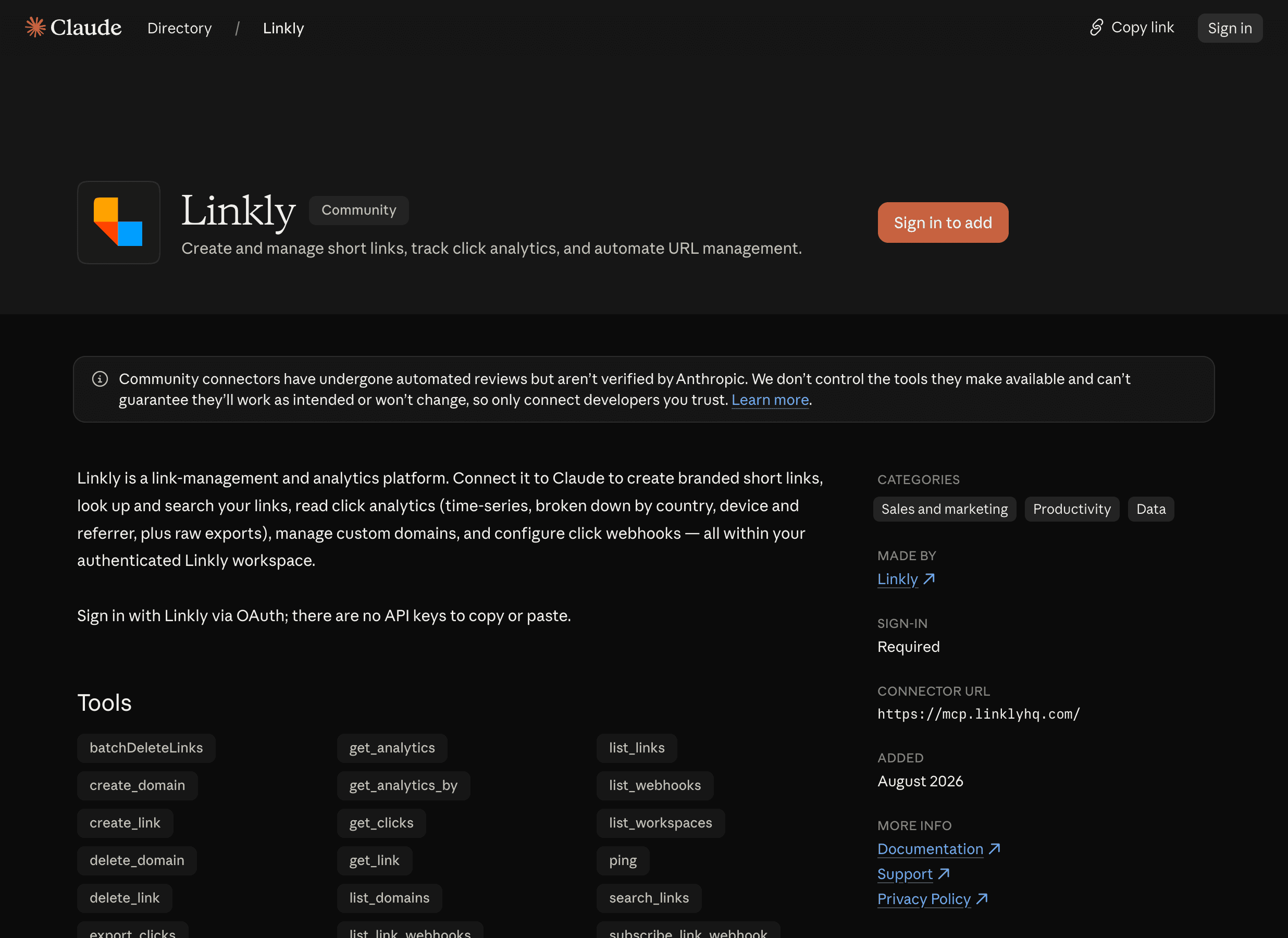
Click Connect to Claude
On the Linkly listing, click Connect to Claude, signing in to Claude first if you aren't already.
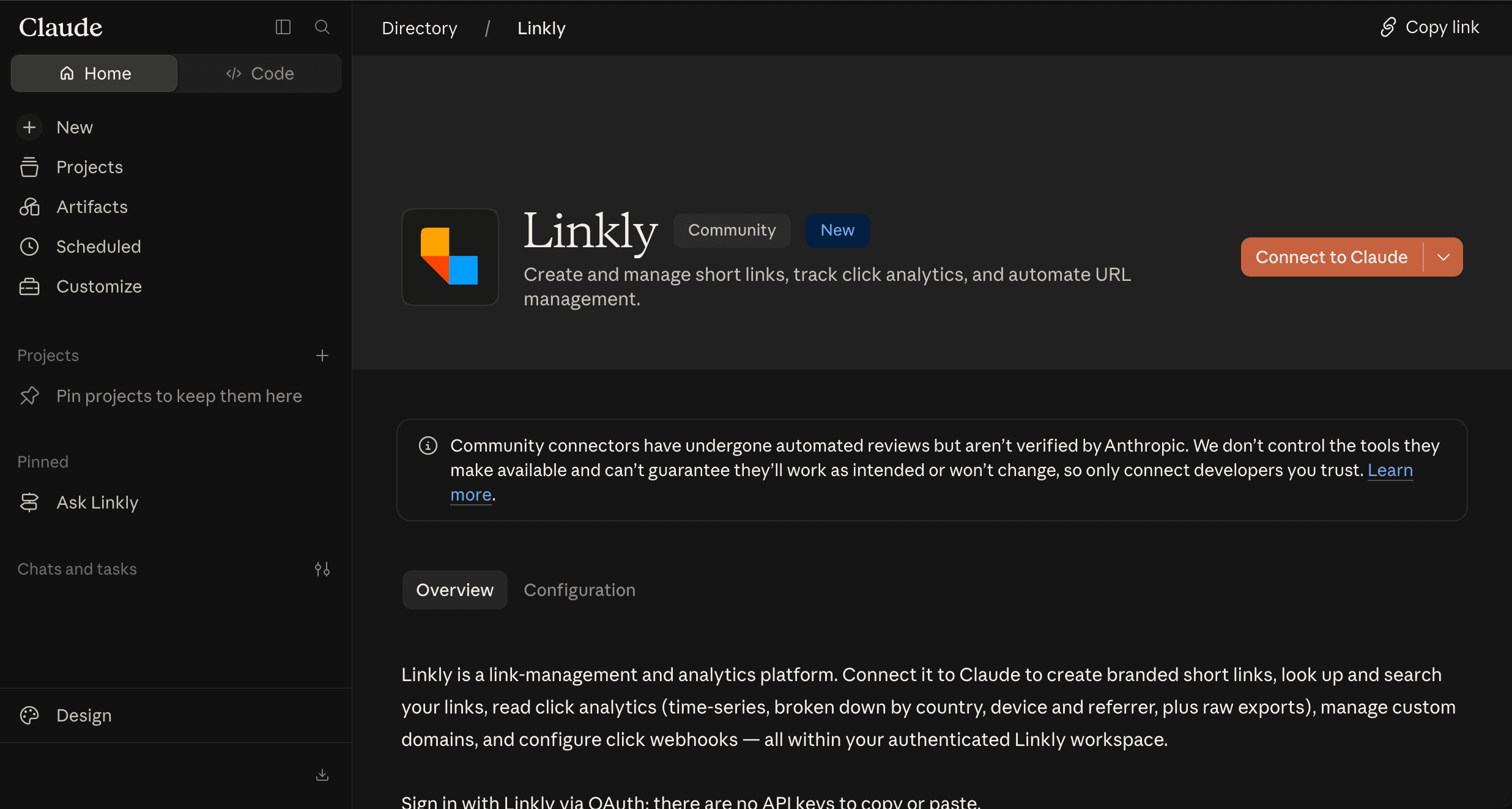
Sign in to Linkly
A browser window opens asking you to sign in to Linkly and choose which workspace to connect. Approve access and you're done — Claude stays connected. No API key needed: Linkly uses OAuth, so you sign in the same way you do on the website.
Start asking
Try "List my Linkly links" or "Create a short link for https://example.com". Look for the tools icon in Claude's input area to see every Linkly tool that's available.
Manual setup
If you can't see Linkly in the directory (some organisations disable it), you can add Linkly as a custom connector instead:
- 1Go to Settings → Connectors and click Add custom connector.
- 2Enter the name
Linklyand the remote MCP server URLhttps://mcp.linklyhq.com, then click Add. - 3Click Connect and sign in to Linkly in the browser window that opens.
The video below walks through the manual setup end to end, from adding the custom connector to asking Claude for your links.
Adding Linkly to Claude manually as a custom connector
Claude Code
In a terminal, run:
claude mcp add --transport http linkly https://mcp.linklyhq.com
Then start Claude Code and complete the Linkly sign-in when prompted.
More information
For detailed documentation on available tools, link creation options, and troubleshooting, see the Linkly MCP Server documentation.
Related resources
- Linkly MCP Server - Full MCP documentation
- ChatGPT Integration
- Linkly API Documentation
- Webhooks
Claude integration FAQs
Do I need a paid Linkly plan?
No. The Claude integration works on every Linkly plan, including the free plan. Some individual features (such as custom domains or webhooks) follow your plan's limits, exactly as they do in the Linkly app.
I can't find Linkly in the Claude directory
Some organisations restrict the directory to approved connectors. If that's the case, ask your Claude admin to allow Linkly, or use the manual setup above with the URL https://mcp.linklyhq.com.
"Could not connect to MCP server"
Confirm https://mcp.linklyhq.com is reachable from your machine and that you are signed in to Linkly. Disconnect Linkly under Settings → Connectors and connect it again to retry.
"invalid_client" or "Unknown client_id"
Claude is holding a stale connection registration. Disconnect Linkly under Settings → Connectors, then connect again and sign in when the browser window opens. Reconnecting clears the cached registration behind the error.
"Authentication failed" or the browser keeps re-prompting
Disconnect Linkly under Settings → Connectors and connect it again, then complete the browser sign-in. This resets the OAuth connection.
Tools not appearing in Claude
Make sure Linkly shows as connected under Settings → Connectors — click Connect and complete the browser sign-in if it isn't. The tools icon appears in the input area once connected.
How do I switch to a different Linkly workspace?
Disconnect Linkly under Settings → Connectors and connect again. When the Linkly sign-in appears, choose the workspace you want.
What can I do with the Claude integration?
You can create, update, and delete links, view analytics and click data, search your links, manage custom domains, and set up webhooks - all through natural conversation with Claude. See the full list of tools.
Plan availability
Included on every plan
Get 100 short links and track 500 monthly clicks for free.