
Nhập từ Bảng tính
Tính năng Nhập từ Bảng tính của Linkly cho phép bạn tạo nhiều liên kết cùng một lúc bằng giao diện bảng tính quen thuộc - trực tiếp trong trình duyệt của bạn. Không cần tải xuống mẫu hoặc xuất tệp CSV.
Bắt đầu
- 1Đi tới Integrations → Spreadsheet Import trong không gian làm việc của bạn
- 2Nhập dữ liệu trực tiếp trong bảng tính hoặc dán từ Excel/Google Sheets
- 3Nhấp Import để tạo liên kết của bạn
Dữ liệu của bạn được tự động lưu trong trình duyệt, vì vậy bạn có thể đóng tab và quay lại sau này.
Cách nhập liên kết
Điều hướng đến Spreadsheet Import
Trong không gian làm việc của bạn, đi tới Integrations → Spreadsheet Import từ thanh bên trái.
Nhập URL đích của bạn
Cột Destination URL là bắt buộc. Nhập các URL mà bạn muốn rút ngắn.
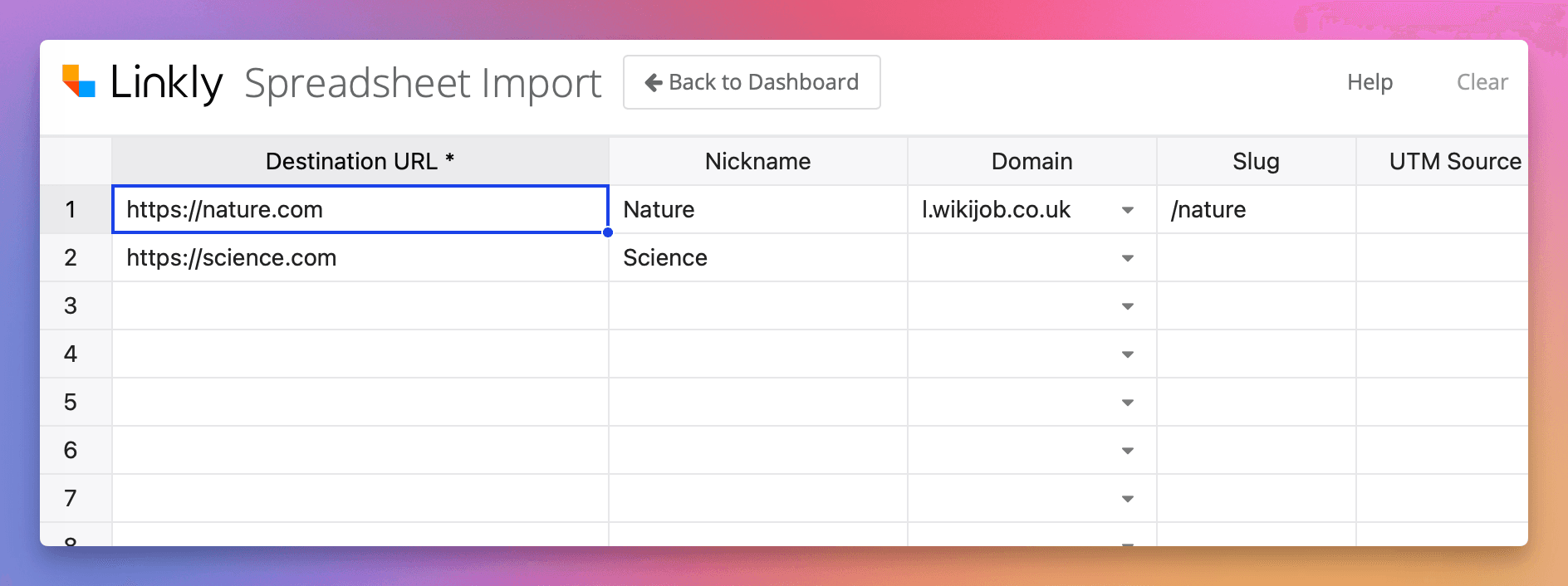
Thêm các trường tùy chọn
Thêm tên gợi nhớ, miền tùy chỉnh, slug, tham số UTM, pixel theo dõi và quy tắc khi cần.
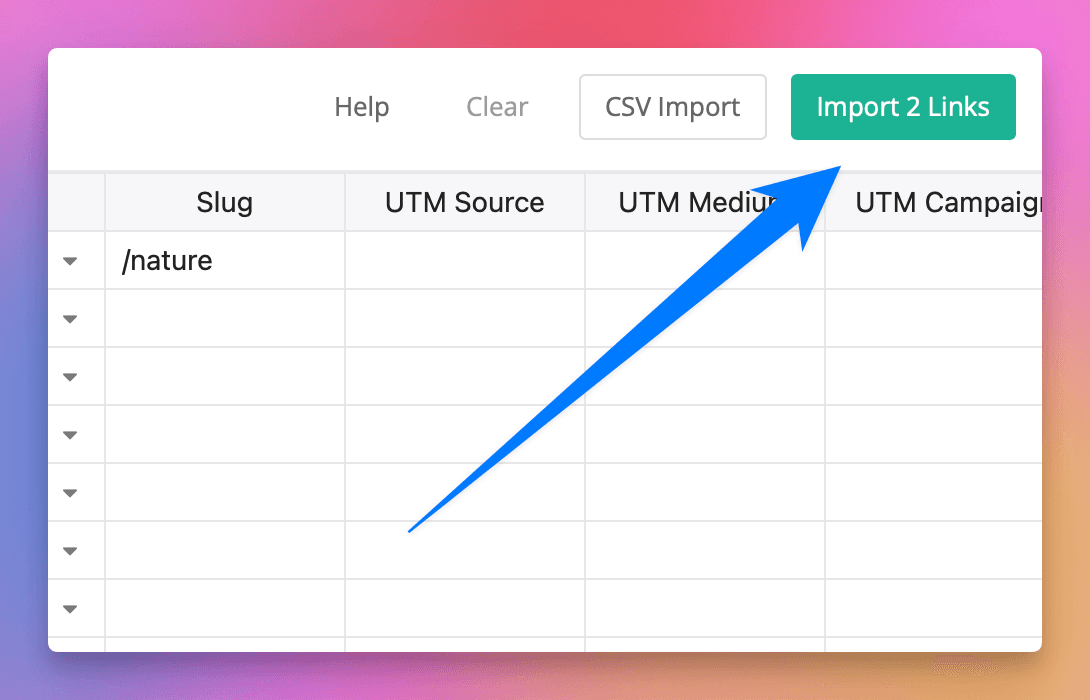
Nhấp Import
Nhấp nút Import ở góc trên cùng bên phải. Linkly sẽ xử lý từng hàng và hiển thị trạng thái trong cột Status.
Xem liên kết mới của bạn
Sau khi hoàn tất, nhấp Go to Dashboard để xem các liên kết mới tạo của bạn.
Các cột có sẵn
Trường cơ bản
| Cột | Mô tả |
|---|---|
| Destination URL | URL để chuyển hướng đến (bắt buộc) |
| Nickname | Tên thân thiện cho liên kết (chỉ bạn nhìn thấy) |
| Domain | Miền tùy chỉnh của bạn (để trống cho miền mặc định) |
| Slug | Phần cuối tùy chỉnh, ví dụ: /my-campaign |
Tham số UTM
| Cột | Mô tả |
|---|---|
| UTM Source | Nguồn lưu lượng (ví dụ: newsletter, twitter) |
| UTM Medium | Phương tiện tiếp thị (ví dụ: email, social) |
| UTM Campaign | Tên chiến dịch |
| UTM Term | Từ khóa tìm kiếm trả tiền |
| UTM Content | Phân biệt nội dung/liên kết tương tự |
Pixel theo dõi
| Cột | Mô tả |
|---|---|
| GA4 Tag ID | ID đo lường Google Analytics 4 |
| GTM ID | ID vùng chứa Google Tag Manager |
| FB Pixel ID | ID pixel Meta/Facebook |
Quy tắc
| Cột | Mô tả |
|---|---|
| Rule Type | country, platform, hoặc rotator |
| Rule Matches | Giá trị được phân tách bằng dấu phẩy (ví dụ: US,GB hoặc ios,android) |
| Rule URL(s) | URL đích cho quy tắc |
| Rule % | Tỷ lệ phần trăm lưu lượng cho quy tắc rotator |
Mẹo và thủ thuật
- Dán từ Excel/Google Sheets: Chọn dữ liệu của bạn và dán trực tiếp vào bảng tính
- Nhấp chuột phải để xem các tùy chọn: Thêm hoặc xóa hàng bằng menu bối cảnh
- Tự động lưu: Dữ liệu của bạn được lưu tự động trong trình duyệt
- Tiếp tục sau: Đóng tab và quay lại - dữ liệu của bạn vẫn sẽ ở đó
- Xóa và bắt đầu lại: Sử dụng nút Clear để đặt lại bảng tính
Làm việc với quy tắc
Quy tắc quốc gia/nền tảng
Để nhắm mục tiêu địa lý hoặc nhắm mục tiêu thiết bị, đặt Rule Type thành country hoặc platform, thêm các trận đấu được phân tách bằng dấu phẩy và cung cấp một Rule URL duy nhất.
Ví dụ - Chuyển hướng khách truy cập từ Mỹ:
| Rule Type | Rule Matches | Rule URL(s) |
|---|---|---|
| country | US | https://example.com/us |
Quy tắc rotator
Để kiểm tra A/B, đặt Rule Type thành rotator, cung cấp các URL được phân tách bằng dấu phẩy và tùy chọn chỉ định tỷ lệ phần trăm.
Ví dụ - Chia nhỏ lưu lượng 50/50:
| Rule Type | Rule URL(s) | Rule % |
|---|---|---|
| rotator | https://page-a.com,https://page-b.com | 50,50 |
Các câu hỏi thường gặp
Điều gì sẽ xảy ra nếu tôi đóng trình duyệt?
Dữ liệu của bạn được tự động lưu trong kho lưu trữ cục bộ của trình duyệt. Khi bạn quay lại, bảng tính của bạn sẽ chính xác như cách bạn để lại.
Tôi có thể dán từ Excel hoặc Google Sheets không?
Có! Chỉ cần chọn và sao chép dữ liệu của bạn, sau đó dán trực tiếp vào bảng tính Linkly.
Tại sao lần nhập của tôi hiển thị lỗi?
Kiểm tra cột Status để biết chi tiết lỗi. Các vấn đề phổ biến bao gồm URL không hợp lệ, slug trùng lặp trên cùng một miền hoặc thiếu các trường bắt buộc.
Tôi có thể nhập liên kết với các miền tùy chỉnh không?
Có, nhập miền tùy chỉnh của bạn trong cột Domain và tùy chọn một slug. Miền phải được định cấu hình sẵn trong không gian làm việc của bạn.
Làm cách nào để thêm nhiều quy tắc vào một liên kết?
Đối với quy tắc quốc gia/nền tảng, sử dụng các giá trị được phân tách bằng dấu phẩy trong cột Rule Matches. Đối với rotator, sử dụng các URL và tỷ lệ phần trăm được phân tách bằng dấu phẩy.
Tính khả dụng của gói dịch vụ
Có sẵn trên Starter trở lên
Nhận ngay 100 liên kết rút gọn và theo dõi 500 lượt nhấp chuột mỗi tháng hoàn toàn miễn phí.
Không cần thẻ tín dụng
Khối lượng giao dịch lớn? Hãy liên hệ với đội ngũ của chúng tôi.