Using Linkly with ChatGPT

Connect ChatGPT to your Linkly account and manage short links through natural conversation.

What You Can Do

Once connected, you can ask ChatGPT to:

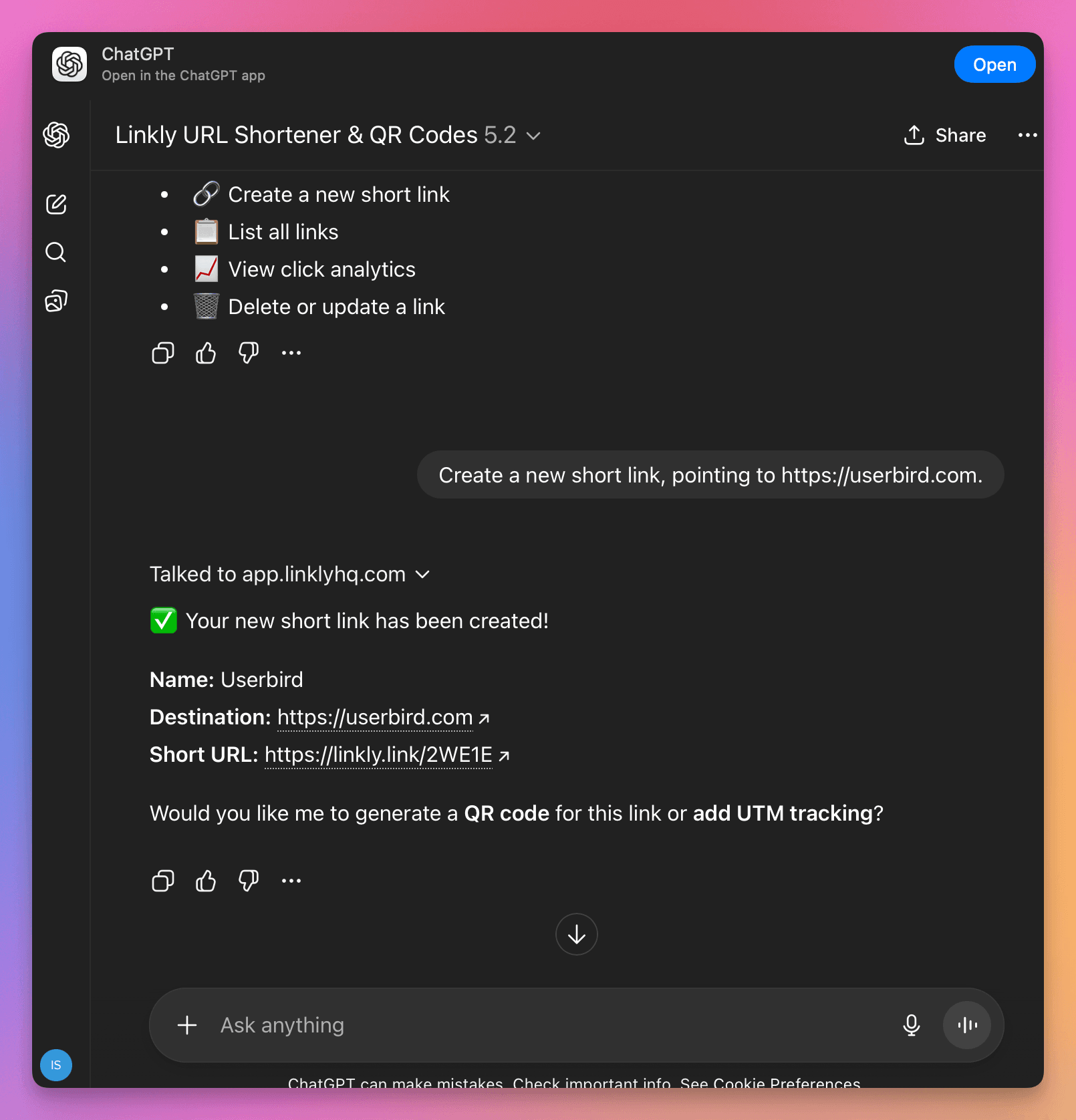
  • Create short links - "Create a short link for https://example.com"
  • Track performance - "How many clicks did my links get this week?"
  • Manage links - "Update the link called 'promo' with a new destination"
  • View analytics - "Show me clicks by country for the last 30 days"
  • Search links - "Find all links related to the product launch"

There are two ways to connect Linkly to ChatGPT:

  1. MCP Server (recommended) - Connect via the ChatGPT Desktop App using the Model Context Protocol
  2. Custom GPT - Create a Custom GPT with Linkly API Actions

Option 1: Connecting the Linkly MCP Server to ChatGPT

This method uses the ChatGPT Desktop App and the Model Context Protocol (MCP). Once connected, you can manage Linkly links, analytics, and workflows directly through natural-language commands.

Overview

ChatGPT supports the Model Context Protocol (MCP) through a local configuration file. There is no integrations menu inside ChatGPT; MCP servers are discovered automatically by the desktop application.

Requirements

You need:

  • The ChatGPT Desktop App (macOS or Windows)
  • A Linkly account
  • Your Linkly API key
  • The Linkly MCP server installed locally (Node.js, Python, or standalone binary)

How to Connect the Linkly MCP Server

  1. Install ChatGPT Desktop

    Download and install the ChatGPT desktop application. MCP connections work only in the desktop app, not the web version.

  2. Locate the MCP Configuration File

    ChatGPT loads MCP servers from a local JSON file:

    macOS: ~/Library/Application Support/ChatGPT/mcp_servers.json

    Windows: %APPDATA%\ChatGPT\mcp_servers.json

    Create the file if it does not exist.

  3. Add the Linkly MCP Server Configuration

    Edit mcp_servers.json with the configuration for your local MCP server. Replace paths and environment values with your actual setup.

    Example (Node.js MCP server):

    {
      "servers": {
        "linkly": {
          "command": "node",
          "args": ["/path/to/linkly-mcp-server.js"],
          "env": {
            "LINKLY_API_KEY": "YOUR_API_KEY"
          }
        }
      }
    }
    

    Example (Binary MCP server):

    {
      "servers": {
        "linkly": {
          "command": "/path/to/linkly-mcp",
          "args": [],
          "env": {
            "LINKLY_API_KEY": "YOUR_API_KEY"
          }
        }
      }
    }
    
  4. Restart ChatGPT

    Quit and relaunch the ChatGPT desktop app. ChatGPT will automatically detect the MCP server and load the Linkly tools. To verify, open a new chat and ask ChatGPT to perform a Linkly action.

Using Linkly Commands via MCP

After connecting, simply issue natural-language commands:

  • Create a link: "Create a new Linkly link for https://example.com with the slug 'promo'."
  • Update a link: "Update the Linkly link with ID 12345 and point it to https://landingpage.com."
  • Analytics: "Show me the last 7 days of clicks for link ID 12345."
  • List domains: "List all domains in my Linkly workspace."

MCP Troubleshooting

ChatGPT does not show Linkly tools:

  • Ensure you are using the desktop app
  • Validate JSON formatting in mcp_servers.json
  • Restart ChatGPT after changes

Server not reachable:

  • Confirm that the command path is correct
  • Verify the MCP server runs manually from the terminal

Authentication issues:

  • Check that the LINKLY_API_KEY variable is present in the config
  • Try regenerating your Linkly API key

Removing the MCP Integration

To disconnect:

  1. Open mcp_servers.json
  2. Delete the linkly block
  3. Restart ChatGPT

Option 2: Create a Custom GPT with Linkly Actions

This method creates a Custom GPT that connects to your Linkly account via the API.

How to set up a Custom GPT with Linkly

  1. Get your API credentials from Linkly

    Log in to your Linkly dashboard, go to Settings → API, and copy your API Key and Workspace ID.

  2. Create a Custom GPT in ChatGPT

    Go to ChatGPT, click your profile icon → My GPTsCreate a GPT. In the Configure tab, name your GPT (e.g., "Linkly Link Manager").

  3. Add GPT instructions

    In the Instructions field, add: "You are a helpful assistant that manages short links using Linkly. You can create new short links, list and search existing links, view click analytics, and update or delete links."

  4. Create a new Action

    Scroll to Actions and click Create new action. For Authentication, select API Key, set Auth Type to Custom, Custom Header Name to X-API-KEY, and paste your Linkly API key.

  5. Add the OpenAPI schema

    Paste the Linkly OpenAPI schema (provided below) into the Schema field. This defines all the available Linkly API endpoints.

  6. Configure your workspace ID

    Add this to the end of your GPT instructions: "When making API calls, always use workspace_id: YOUR_WORKSPACE_ID and include X-WORKSPACE-ID: YOUR_WORKSPACE_ID in headers." Replace YOUR_WORKSPACE_ID with your actual workspace ID.

  7. Test and save

    Click Test to verify the connection works, then click Save to publish your GPT.

OpenAPI Schema

Copy and paste this schema into your Custom GPT's Action configuration:

openapi: 3.1.0
info:
  title: Linkly API
  description: API for managing short links, analytics, and domains
  version: 1.0.0

servers:
  - url: https://app.linklyhq.com

paths:
  /api/v1/workspace/{workspace_id}/links:
    post:
      operationId: createOrUpdateLink
      summary: Create a new short link or update an existing one
      parameters:
        - name: workspace_id
          in: path
          required: true
          schema:
            type: string
        - name: X-WORKSPACE-ID
          in: header
          required: true
          schema:
            type: string
      requestBody:
        required: true
        content:
          application/json:
            schema:
              type: object
              required:
                - url
              properties:
                id:
                  type: integer
                  description: Link ID (include to update existing link)
                url:
                  type: string
                  description: The destination URL
                name:
                  type: string
                  description: Nickname for the link
                note:
                  type: string
                  description: Private note about this link
                domain:
                  type: string
                  description: Custom domain (without trailing /)
                slug:
                  type: string
                  description: Custom slug (must start with /)
                enabled:
                  type: boolean
                  description: Whether the link is active
                utm_source:
                  type: string
                utm_medium:
                  type: string
                utm_campaign:
                  type: string
                utm_term:
                  type: string
                utm_content:
                  type: string
      responses:
        '200':
          description: Link created or updated successfully

  /api/v1/workspace/{workspace_id}/links/{link_id}:
    delete:
      operationId: deleteLink
      summary: Delete a link
      parameters:
        - name: workspace_id
          in: path
          required: true
          schema:
            type: string
        - name: link_id
          in: path
          required: true
          schema:
            type: integer
        - name: X-WORKSPACE-ID
          in: header
          required: true
          schema:
            type: string
      responses:
        '200':
          description: Link deleted

  /api/v1/get_link/{link_id}:
    get:
      operationId: getLink
      summary: Get details of a specific link
      parameters:
        - name: link_id
          in: path
          required: true
          schema:
            type: integer
        - name: X-WORKSPACE-ID
          in: header
          required: true
          schema:
            type: string
      responses:
        '200':
          description: Link details

  /api/v1/workspace/{workspace_id}/links/export:
    get:
      operationId: listLinks
      summary: List all links in the workspace
      parameters:
        - name: workspace_id
          in: path
          required: true
          schema:
            type: string
        - name: X-WORKSPACE-ID
          in: header
          required: true
          schema:
            type: string
        - name: search
          in: query
          schema:
            type: string
          description: Search query to filter links
      responses:
        '200':
          description: List of links

  /api/v1/workspace/{workspace_id}/clicks/export:
    get:
      operationId: getClicks
      summary: Get recent click data
      parameters:
        - name: workspace_id
          in: path
          required: true
          schema:
            type: string
        - name: X-WORKSPACE-ID
          in: header
          required: true
          schema:
            type: string
        - name: link_id
          in: query
          schema:
            type: integer
          description: Filter by link ID
      responses:
        '200':
          description: Recent clicks

  /api/v1/workspace/{workspace_id}/clicks:
    get:
      operationId: getAnalytics
      summary: Get time-series click analytics
      parameters:
        - name: workspace_id
          in: path
          required: true
          schema:
            type: string
        - name: X-WORKSPACE-ID
          in: header
          required: true
          schema:
            type: string
        - name: start
          in: query
          schema:
            type: string
          description: Start date (YYYY-MM-DD)
        - name: end
          in: query
          schema:
            type: string
          description: End date (YYYY-MM-DD)
        - name: link_id
          in: query
          schema:
            type: integer
          description: Filter by link ID
      responses:
        '200':
          description: Analytics data

  /api/v1/workspace/{workspace_id}/clicks/counters/{counter}:
    get:
      operationId: getAnalyticsBy
      summary: Get click counts grouped by dimension
      parameters:
        - name: workspace_id
          in: path
          required: true
          schema:
            type: string
        - name: counter
          in: path
          required: true
          schema:
            type: string
            enum: [country, platform, browser_name, referer, isp, link_id]
          description: Dimension to group by
        - name: X-WORKSPACE-ID
          in: header
          required: true
          schema:
            type: string
      responses:
        '200':
          description: Grouped analytics

  /api/v1/workspace/{workspace_id}/domains:
    get:
      operationId: listDomains
      summary: List custom domains
      parameters:
        - name: workspace_id
          in: path
          required: true
          schema:
            type: string
        - name: X-WORKSPACE-ID
          in: header
          required: true
          schema:
            type: string
      responses:
        '200':
          description: List of domains

Available Actions

Action
Description
createOrUpdateLink
Create a new short link or update an existing one (include id to update)
getLink
Get details of a specific link
deleteLink
Delete a link
listLinks
List all links in your workspace (with optional search)
getClicks
Get recent click data
getAnalytics
Get time-series click data for charts
getAnalyticsBy
Get clicks grouped by country, browser, platform, etc.
listDomains
List your custom domains
← Scroll →

When creating links, you can specify:

  • Basic: url, name, note, domain, slug, enabled
  • UTM Parameters: utm_source, utm_medium, utm_campaign, utm_term, utm_content
  • Open Graph: og_title, og_description, og_image
  • Tracking: fb_pixel_id, ga4_tag_id, gtm_id
  • Advanced: cloaking, forward_params, block_bots, hide_referrer
  • Expiry: expiry_datetime, expiry_destination

Example Conversations

You: Create a short link for https://example.com/summer-sale with UTM source "twitter"

ChatGPT: I've created your short link: https://link.ly/abc123 pointing to https://example.com/summer-sale?utm_source=twitter

Checking Analytics

You: How many clicks did I get this week by country?

ChatGPT: Here's your click breakdown for the last 7 days: United States: 1,234 clicks, United Kingdom: 567 clicks, Germany: 234 clicks...

Privacy & Security

  • Your API credentials are stored securely in your Custom GPT configuration
  • Only you (and anyone you share the GPT with) can access your Linkly account
  • You can revoke API keys anytime from the Linkly dashboard

ChatGPT Integration FAQs

"Authentication failed" or "Unauthorized"

Double-check your API key in the Linkly dashboard at Settings → API. Make sure the API key is entered correctly in the Action's authentication settings. Verify there are no extra spaces in your credentials.

Actions not working

Test each action individually using the Test button in the GPT editor. Check that your workspace ID is included in the request. Verify the OpenAPI schema was pasted correctly.

GPT not using the correct workspace

Make sure your workspace ID is in the GPT's instructions. Try being explicit in your request, like "Use my Linkly workspace to create a link for..."

Do I need a ChatGPT Plus subscription?

Yes, creating Custom GPTs with Actions requires a ChatGPT Plus, Team, or Enterprise subscription.

Can I share my Linkly GPT with others?

You can, but be careful - anyone with access to your GPT will be able to use your Linkly API key to manage links in your workspace. Consider creating a separate workspace or API key for shared GPTs.

Track 1000 monthly clicks with all features included.

No credit card required