
Password Protected Links
You can add a password to any Linkly short link. When password protection is enabled, visitors must enter the correct password before being redirected to the destination URL.
Clicks are only recorded after the password is successfully entered, so your analytics stay accurate.
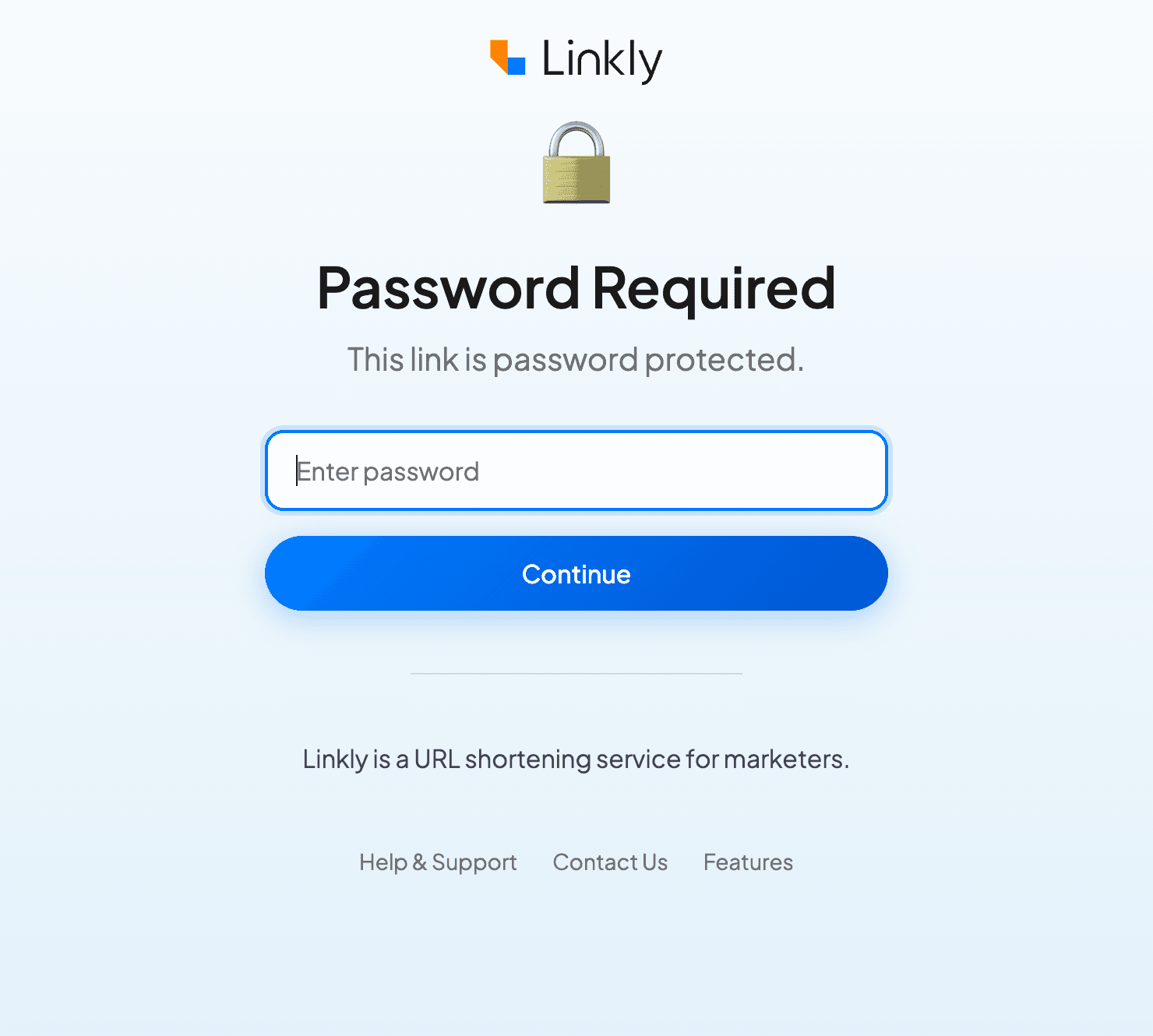
How to add a password to a Linkly link
Click on the Links view.
Hover over the link you want to protect, and click Edit.
Scroll down to the Options section and click Password Protection.
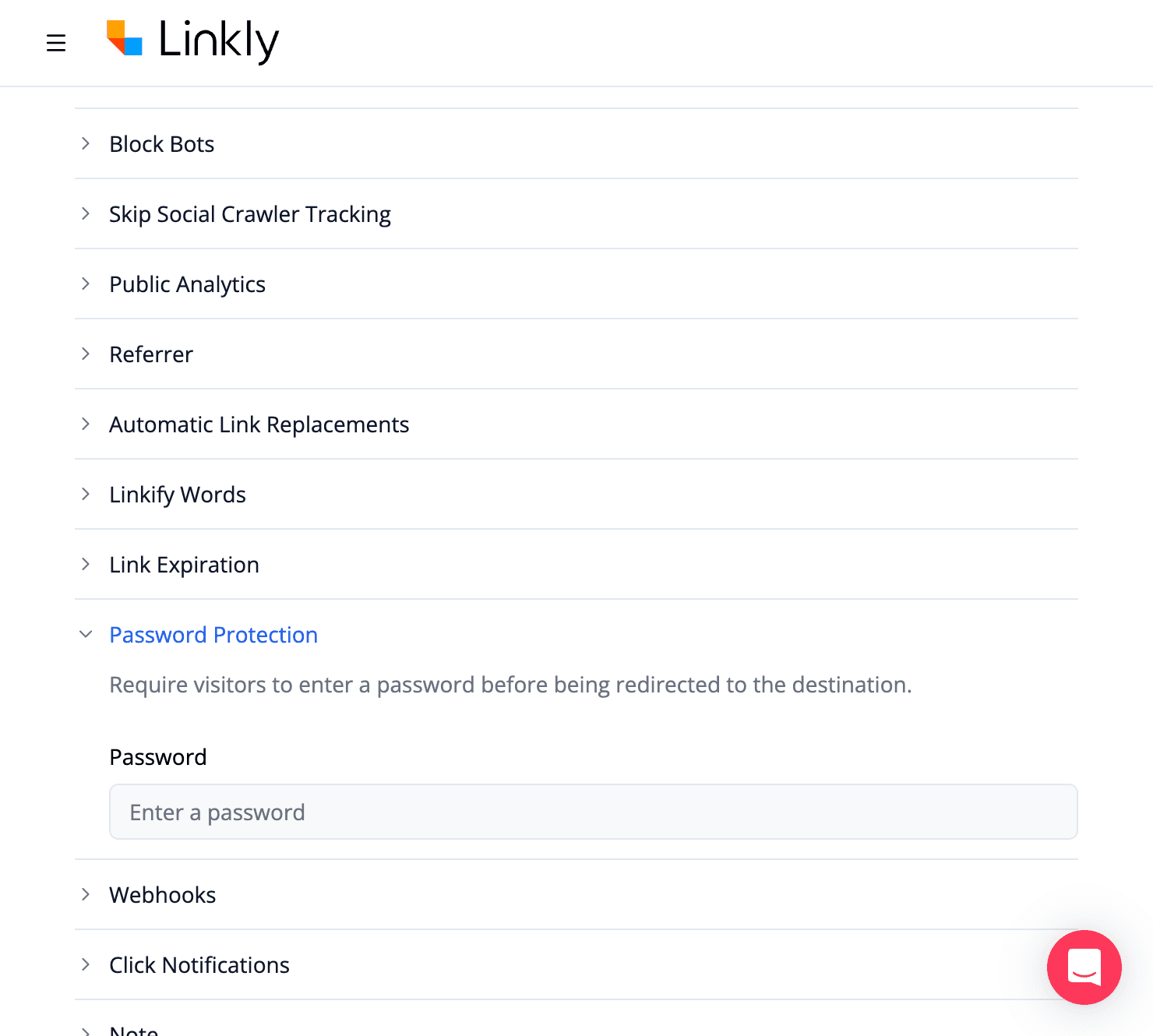
Enter a password in the Password field.
Choose a password you can share with your intended audience. The password is case-sensitive.
Click Save to apply the password.
Visitors will now be prompted to enter the password before being redirected.
How to remove password protection
Click on the Links view.
Hover over the link and click Edit.
Scroll down and click Password Protection to expand the section.
Clear the password field so it is empty.
Click Save to remove the password.
The link will now redirect visitors directly without asking for a password.
Frequently asked questions
What do visitors see when they click a password protected link?
Visitors see a branded Linkly page with a password input field. They must enter the correct password and click "Continue" to be redirected to the destination URL.
Are clicks recorded for password protected links?
Clicks are only recorded after the visitor enters the correct password and is redirected. Visits to the password page itself are not counted as clicks.
What happens if someone enters the wrong password?
An error message is displayed saying "Incorrect password. Please try again." The visitor can retry as many times as needed.
Plan availability
Available on Pro and above
Get 100 short links and track 500 monthly clicks for free.