
How to Create QR Codes in Bulk
Need a QR code for every product, table, poster, or delegate badge? Making them one at a time in a generator doesn't scale past a dozen. This guide shows how to create QR codes in bulk from a spreadsheet, download them all as a single zip of PNG or SVG files, and keep every one of them editable and trackable after printing.
There are three ways to do it in Linkly, from no-code to fully automated:
- 1Spreadsheet → zip — paste your URLs into Linkly's spreadsheet importer, then export every QR code with one click. No code, takes about a minute.
- 2QR codes by URL — add
.qr.pngto any short link to get its QR image. Drop that into a Google Sheets or Excel formula, a mail merge, or a print template and generate thousands of codes without downloading anything. - 3API — create links (with QR styling) from your own system, then fetch the images.
Every QR code Linkly makes is a dynamic QR code: it points at a short link, so you can change the destination after the codes are printed, and every scan is tracked.
Just the export: 12 QR codes in one zip
Search for the links you want, tick the select-all box, then choose Bulk → Export QR Codes → PNG. Linkly renders every code in the browser and downloads a single zip — this batch of 12 took about a second.
Method 1: Create QR codes in bulk from a spreadsheet
Prepare a spreadsheet of destination URLs
In Google Sheets or Excel, put one destination URL per row. Add two optional columns:
- Nickname — becomes the link's name in Linkly and the filename of its QR code, so use something you'll recognise in a folder of 200 images (
Table 14 – menu,SKU-4471 – care card). - Domain — your own custom domain, if you've connected one. Printed QR codes last for years, so it's worth putting them on a domain you control.
The example below is a plant shop making a care-card QR code for each of 12 products.
Open Bulk Import and paste your rows
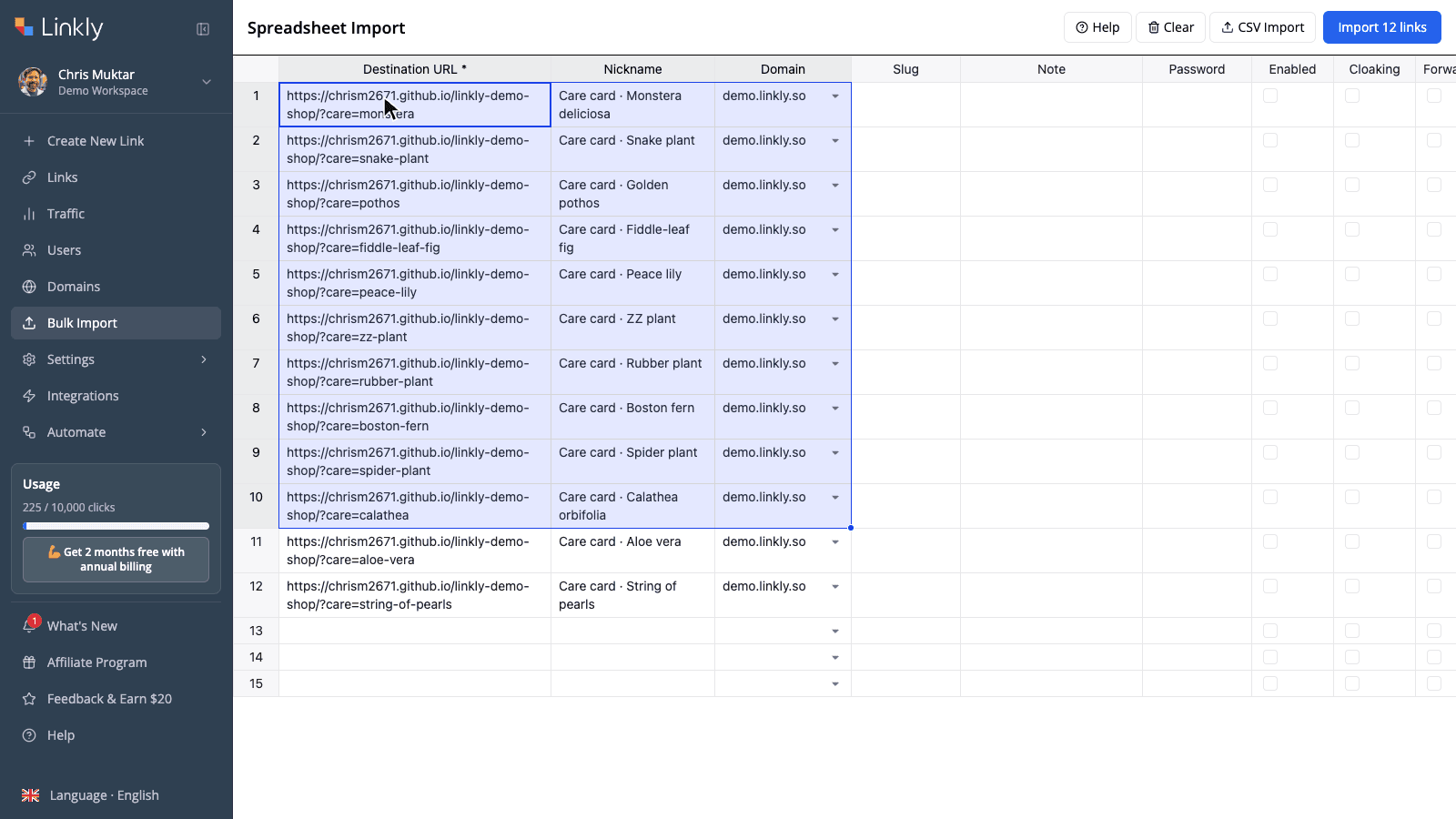
In your Linkly workspace, click Bulk Import in the sidebar (or Bulk → Bulk Import on the links page). This opens the spreadsheet importer — a grid that works like a sheet. Click the first Destination URL cell and paste. Columns line up with the sheet you copied from, so URL, nickname and domain land in the right places.
The grid auto-saves in your browser, and you can also upload a CSV with the CSV Import button if you prefer.
Click Import
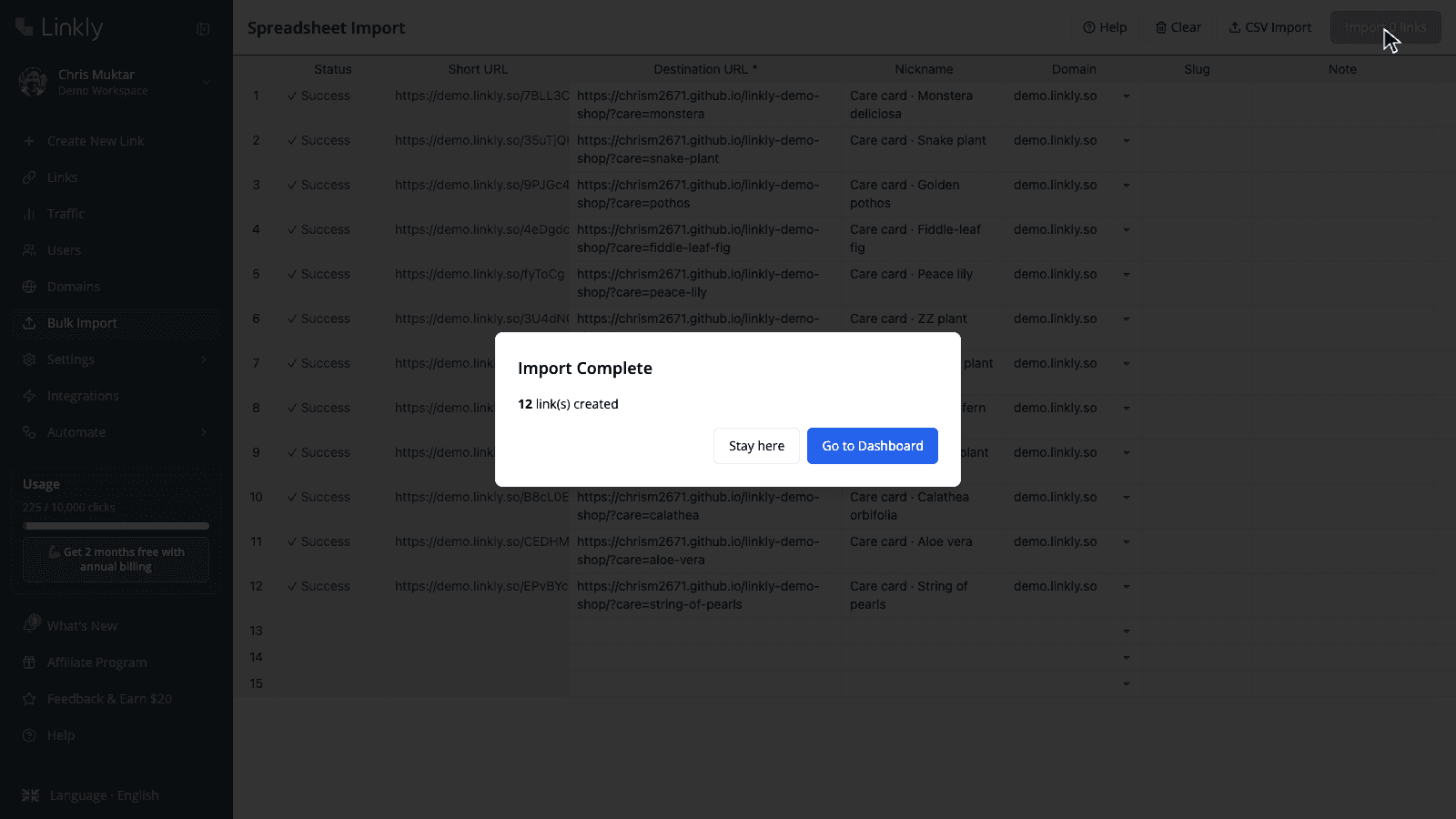
The button shows how many valid rows it found — Import 12 links here. Click it and each row gets a status and a short URL. Rows with a problem (a malformed URL, a slug that's already taken) are flagged individually so you can fix them and import again without touching the rest.
Select the links on your dashboard
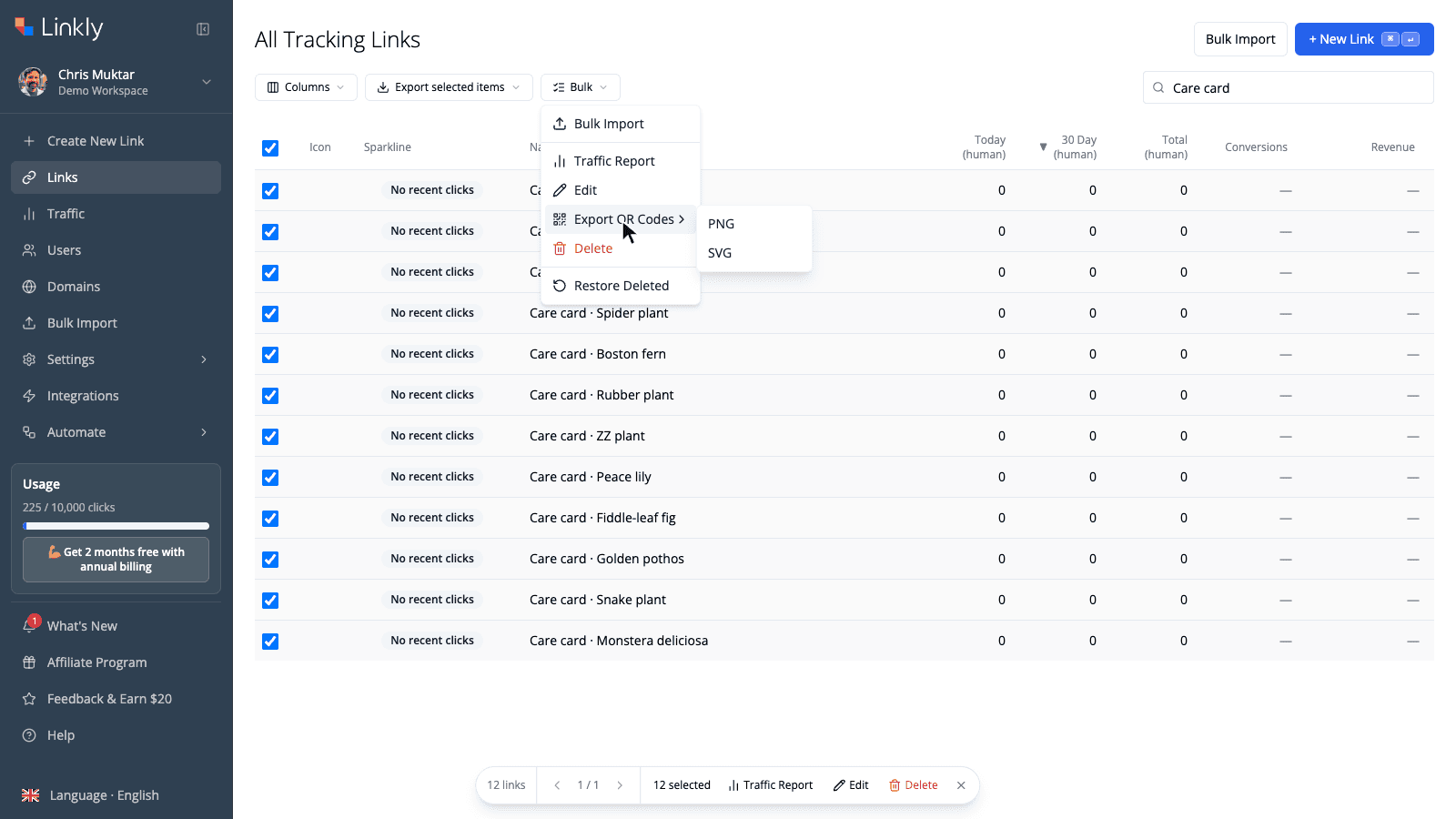
Click Go to Dashboard. Type the nickname keyword you used (here, Care card) into the search box so only this batch is listed, then tick the checkbox in the table header to select every link on the page. The footer confirms how many are selected.
Export the QR codes as PNG or SVG
Open the Bulk menu, hover Export QR Codes, and choose PNG or SVG. Linkly renders every selected code in your browser (no uploads, no per-code rate limit) and downloads a single zip named qr-codes-png-YYYY-MM-DD.zip. A progress toast counts through larger batches.
Unzip and use them
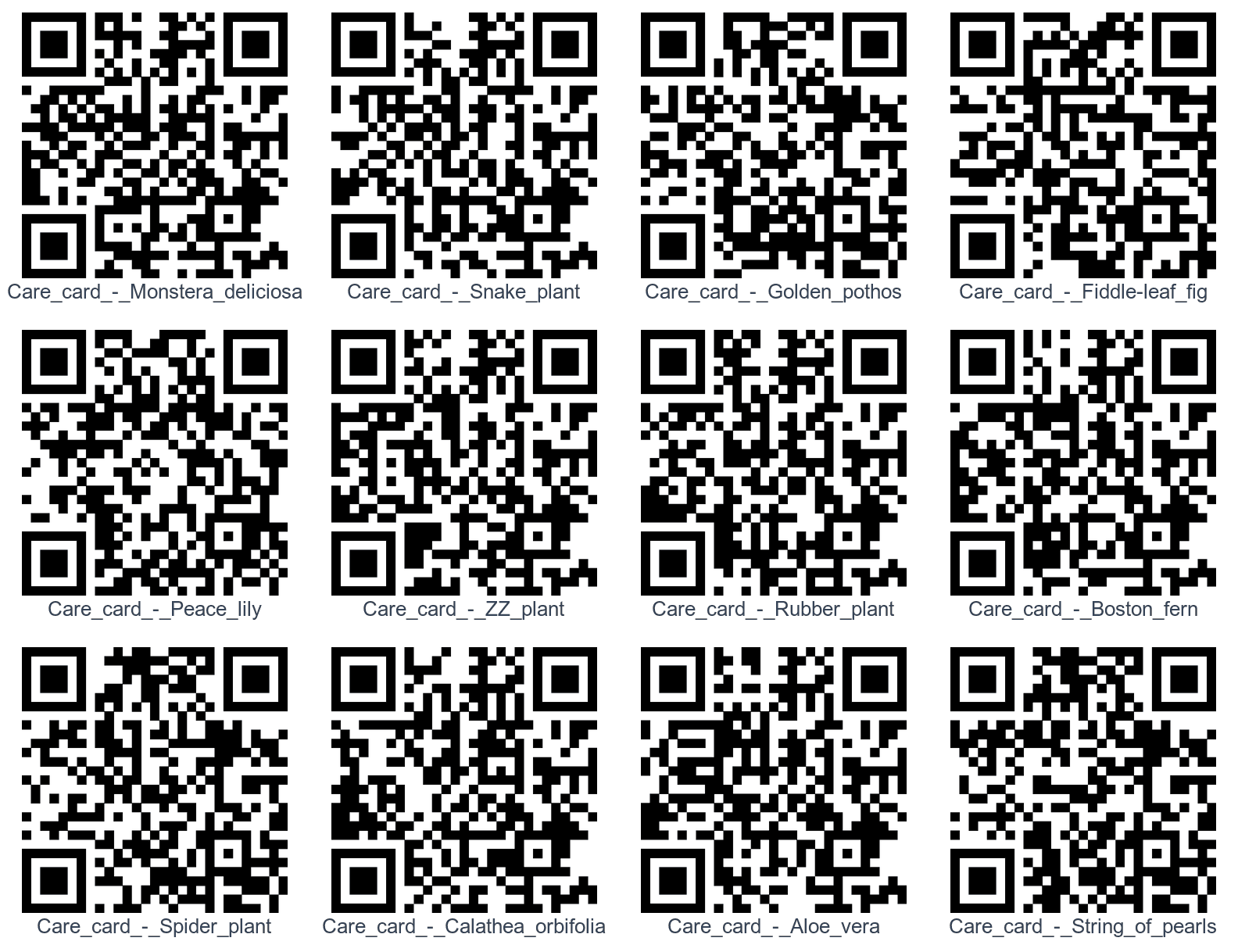
Inside the zip is one image per link, named after the link's nickname. Drop the folder into your design tool, print templates, or product database — the filename tells you which code is which.
PNG or SVG?
| PNG | SVG | |
|---|---|---|
| Best for | Screens, documents, most print jobs | Large-format print, signage, professional design workflows |
| Resolution | 1024 × 1024 pixels | Vector — scales to any size without loss |
| Styling | Full: colours, dot style, eye style, logo | Foreground and background colour only (no logo or eye styles) |
| Background | Transparent unless you set a colour | Transparent unless you set a colour |
| File size | ~25–30 KB each | ~15 KB each |
If you've added a logo or custom eye styles to your codes, export PNG — the bulk export renders exactly what you see in the QR editor for each link. If you're handing files to a printer or designer who needs vectors, export SVG; you can always re-export in the other format, since the codes stay in Linkly.
How many QR codes can you export at once?
Your dashboard lists up to 500 links per page, and the header checkbox selects all of them, so a single export can produce up to 500 codes. For more, page through or narrow the list with search — each page becomes its own zip. Some QR tools cap bulk downloads at 100–150 codes per batch; Linkly renders everything in your browser, so there's no server-side ceiling to hit.
Because the QR codes belong to the links, you can come back and export again at any time — after renaming, restyling, or adding more links to the batch.
Branding QR codes in bulk
QR styling (colour, dot pattern, eye style, logo) is saved per link. There are three ways to apply a consistent brand look across a whole batch:
- Style parameters on the image URL — every short link's QR is available at
<short link>.qr.png, and you can pass styling as query parameters. The same parameter string brands every code identically, without editing any links. See Method 2 below. - Set styles when creating links via the API — pass a
qr_stylesobject with each link and the bulk PNG export (and.qr.png) will use it. See Method 3 below. - Style individual links in the QR editor — open any link, click its QR code, and adjust colours or add a logo. Good for a handful of hero codes; tedious for hundreds.
Whichever you choose, keep the scannability rules in mind: dark code on a light background, a logo no bigger than about 20% of the code, and a real-world test scan before you print.
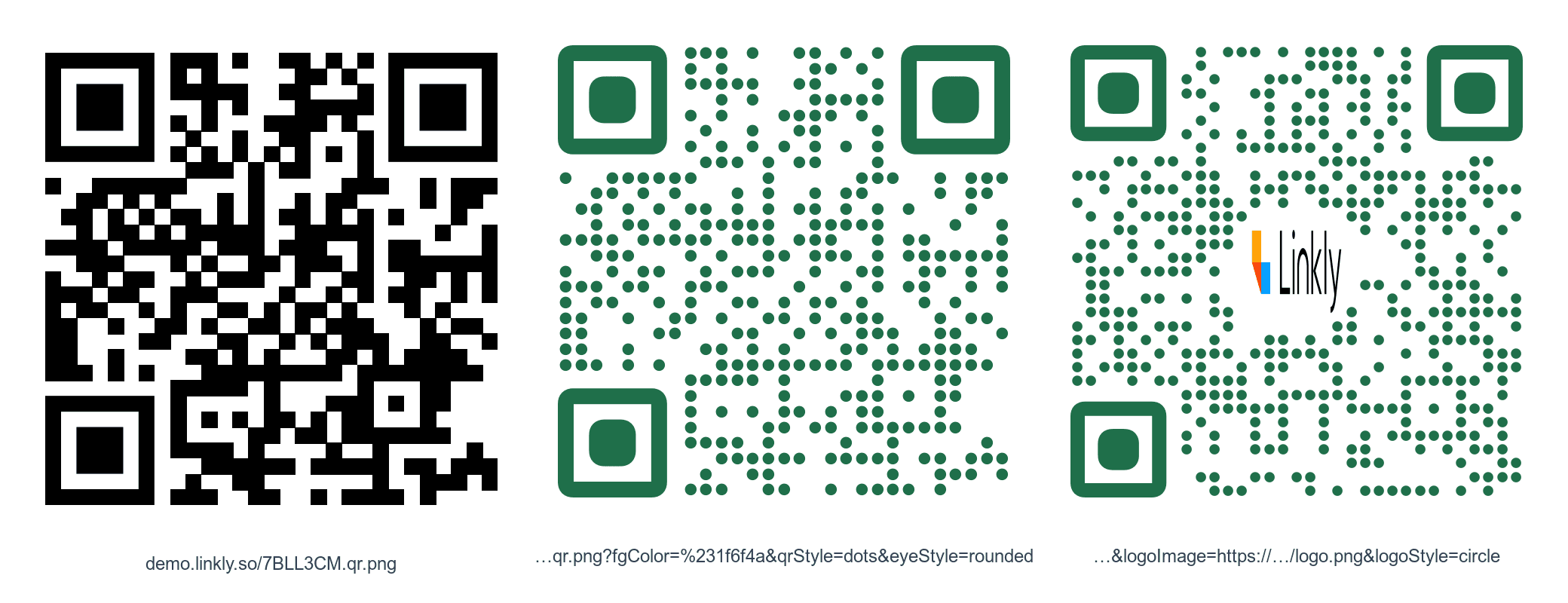
Method 2: Generate QR codes by URL
Every Linkly short link has a QR image at the same address with .qr.png on the end. No login, no API key:
https://demo.linkly.so/7BLL3CM.qr.png
That turns bulk QR generation into a string-concatenation problem, which spreadsheets are good at.
In Google Sheets or Excel
Put your short links in column B (the spreadsheet importer shows them after an import, or use Export data on the dashboard to download them as CSV). Then, in column C:
=IMAGE(B2 & ".qr.png")
Fill the formula down and a QR code appears next to every link. Google Sheets renders =IMAGE() directly; in Excel 365 the same IMAGE() function works. To brand them all at once, append the style parameters:
=IMAGE(B2 & ".qr.png?fgColor=%231f6f4a&qrStyle=dots&eyeStyle=rounded&size=600")
(%23 is a URL-encoded #.) Change the parameters in one cell and every code updates.
In mail merges, labels and print templates
Any tool that can place an image from a URL can use the same trick: mail-merge tools for personalised postcards, label printers, InDesign data merge (use @QR as the column header and the .qr.png URL as the value), or a CMS that renders product pages. Because the image is generated on request, you never manage a folder of files — and if a destination changes, the printed code still works because it's a dynamic QR code.
The full list of parameters — size (up to 2048px), colours, eye colours, logo, padding and quiet zone — is in the QR Code Generator API docs. The endpoint is rate-limited to 5 requests per second per IP, so for very large one-off batches prefer the zip export.
Method 3: The API
If your links live in a database, a booking system, or an e-commerce back end, create them with the Link Shortening API and skip the spreadsheet entirely. Include a qr_styles object to brand each code at creation time:
POST https://app.linklyhq.com/api/v1/link
{
  "api_key": "your_api_key",
  "workspace_id": 1234,
  "url": "https://example.com/products/sku-4471",
  "name": "SKU-4471 – care card",
  "domain": "go.example.com",
  "qr_styles": {
    "fgColor": "#1f6f4a",
    "qrStyle": "dots",
    "eyeStyle": "rounded",
    "logoImage": "https://example.com/logo.png",
    "logoStyle": "circle"
  }
}
The response includes the short link. Append .qr.png to fetch the styled QR image whenever you need it, or select the links on the dashboard and use the bulk zip export. There's also a bulk endpoint that accepts an array of links in one request.
Prefer no-code automation? The Zapier and Make integrations can create a Linkly link (and therefore a QR code) whenever a row is added to a sheet, a product is published, or a form is submitted.
Tips for printing QR codes in bulk
- Test-scan a sample before you print the run. Print one sheet, scan it with an iPhone and an Android phone from the distance people will actually stand at, and check every code lands on the right page. A batch of 500 wrong labels is expensive; a batch of 500 wrong dynamic codes is a two-minute fix in Linkly — but only if the codes themselves scan.
- Use your own domain. Codes generated on a custom domain don't depend on anyone else's brand, and a branded domain reads better on packaging.
- Tag the traffic. Add
utm_source=qrand autm_campaignin the importer's UTM columns so QR scans are separated from web clicks in Google Analytics. Linkly's own traffic reports show scans per code either way. - Mind the quiet zone. Leave clear space around each code (about four modules' width). If you're placing codes on dark backgrounds via the URL method, add
quietZone=50&bgColor=%23ffffff. - Size for the scanning distance. A rough rule: the code's width should be at least one tenth of the distance it'll be scanned from — 2 cm for a hand-held leaflet, 25 cm for a poster read from across a room.
- Keep the names tidy. Nicknames become filenames, and searching by nickname is how you'll re-select the batch later for re-export, editing, or a group traffic report.
- Set expiry where it matters. Event or promotion codes can be given an expiry date or click limit so old print doesn't send people to a dead offer.
Frequently asked questions
Is there a limit on how many QR codes I can create in bulk?
The spreadsheet importer accepts thousands of rows; large imports are processed row by row with a status for each. The bulk QR export works on whatever is selected on the current dashboard page (up to 500 links), so a single zip holds up to 500 codes — page through or filter by search for more. Linkly workspaces support millions of links.
Do the QR codes keep their colours and logo in the bulk export?
Yes for PNG: each code is rendered with the colours, dot style, eye style and logo saved on its link, exactly as in the QR editor. SVG exports keep the foreground and background colours but not logos or eye styles, since they're plain vector output.
Can I change where a QR code points after I've printed it?
Yes. Every Linkly QR code is dynamic — it encodes the short link, not the destination — so edit the link's destination in Linkly and the printed code follows. You can also add rules later: country redirects, device redirects, or a link rotator, all behind the same printed code.
How are the files in the zip named?
After the link's nickname, with spaces and punctuation turned into underscores — Table_14_menu.png. If two links share a name, the second gets the link ID appended so nothing is overwritten. Links without a nickname are named after their destination URL.
Can I export QR codes for links I created earlier, not just imported ones?
Yes. The bulk export works on any selection of links — imported, created one by one, or made via the API. Use search to narrow the list (any field is searchable), select all, then Bulk → Export QR Codes.
Can I create QR codes in bulk without downloading files?
Yes — use the .qr.png URL. Put the short links in a spreadsheet and use =IMAGE(B2 & ".qr.png"), or reference the URL from a mail-merge or print template. The images are generated on request, so there's nothing to store.
Is bulk QR code creation free?
Creating QR codes, styling them, exporting them in bulk, and the .qr.png image URL are available on every plan, including the free plan. The spreadsheet/CSV importer that creates links in bulk is included on Pro plans and above; on lower plans you can still create links individually or via Zapier and export their QR codes in bulk.
Which is better for print, PNG or SVG?
SVG for anything large or going to a professional printer — it's vector, so it stays crisp at any size. PNG (1024 × 1024) is fine for labels, leaflets and screens, and it's the only format that carries logos and eye styles.
Can I see how many times each QR code has been scanned?
Yes. Scans are recorded as clicks on the link. Select the batch on the dashboard and use Bulk → Traffic Report for a combined view, or open any link for its own scan analytics by country, device and time.
Related guides
- Create a QR code for a link — the basics, one link at a time
- Spreadsheet import — every column the importer accepts, including UTM tags, pixels and redirect rules
- Bulk link import with Google Sheets — the CSV template route
- Add a logo to a QR code — styling rules that keep codes scannable
- SVG QR codes — vector output for print
- QR Code Generator API — all
.qr.pngparameters - Link Shortening API — create links programmatically
- QR code analytics — track scans per code
Plan availability
Available on Pro and above
Get 100 short links and track 500 monthly clicks for free.