
Linkly & Stripe
Click counts tell you a link was popular. They don't tell you it made any money.
Install the Linkly app from the Stripe App Marketplace and every payment that came through a tracked Linkly link is recorded against that link. You can then compare emails, ads, creators and campaigns by revenue, not only by clicks. Subscription renewals are credited to the link that first won the customer, and refunds are subtracted.
What you need
- A Linkly account. The free plan works.
- A Stripe account. The app is free, and it only reads: it never creates charges or changes anything in Stripe.
Install and connect
- 1Install Linkly Conversion Tracking from the Stripe App Marketplace. After installing you land on the app's settings page.
- 2Click Connect to Linkly. A new tab opens on Linkly.
- 3Sign in to Linkly, choose the workspace this Stripe account belongs to, and click Connect Stripe.
- 4Back in Stripe, click Check again. The page shows the workspace you connected.
Until a workspace is connected, nothing is recorded.
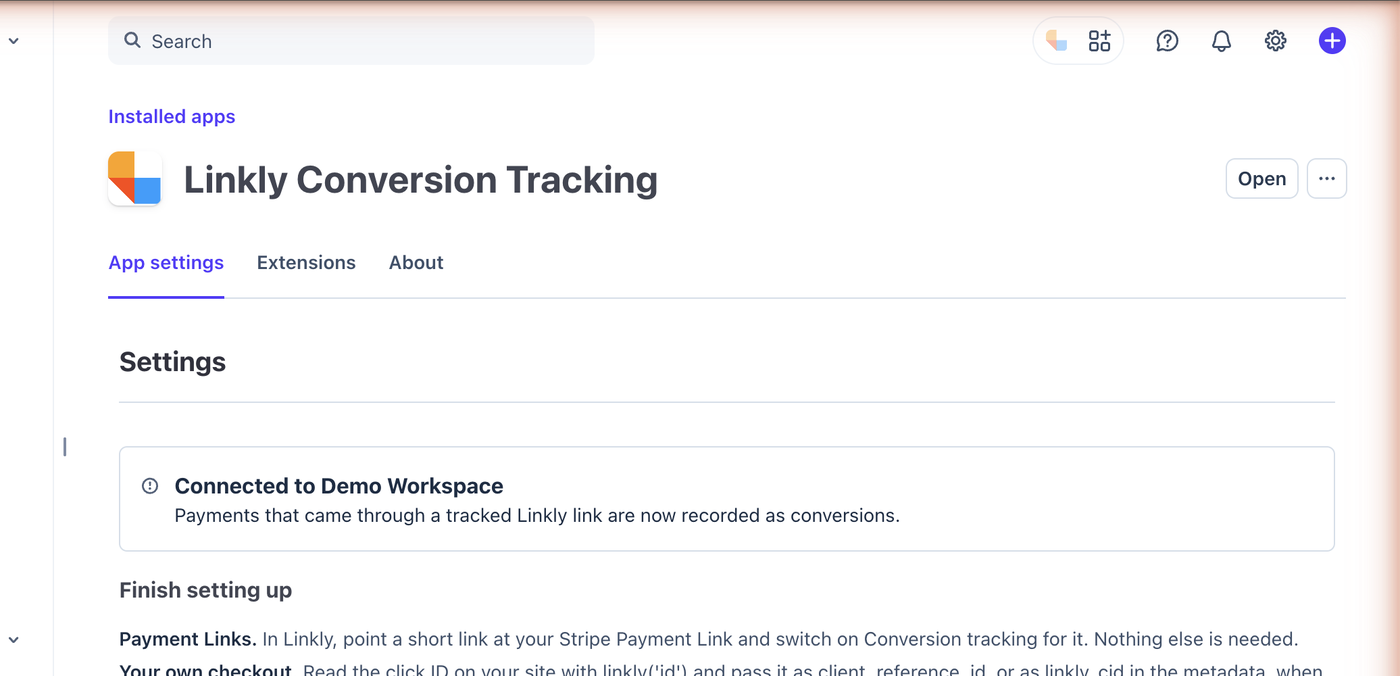
Track Stripe Payment Links (no code)
- 1In Linkly, create a link that points at your Stripe Payment Link, for example
https://buy.stripe.com/abc123, or edit one you already have. - 2In the link's Tracking & analytics options, switch on Conversion tracking.
That is the whole setup. Share the short link as usual. When someone clicks it, Linkly adds a short random identifier for that click to the Payment Link address as client_reference_id. Stripe hands it back when the payment completes, and Linkly matches the payment to the click.
If your Payment Link already uses client_reference_id for your own reconciliation, Linkly leaves your value alone and that link's payments can't be matched. Use the metadata method below instead.
Track your own checkout
If you create Checkout Sessions in your own code, pass the click identifier yourself. Add the Linkly script to your site:
<script src="https://cdn.linklyhq.com/linkly.js" async></script>
Read the identifier in the browser with linkly('id'), send it to your server with the order, and set it when you create the session:
const session = await stripe.checkout.sessions.create({
  client_reference_id: linklyClickId,
  // ...the rest of your session
});
If client_reference_id is already taken, put it in the metadata instead, as linkly_cid, on the Checkout Session or on the Customer:
await stripe.customers.create({
  email: user.email,
  metadata: { linkly_cid: linklyClickId },
});
A customer created with a click identifier is recorded as a lead, and every payment that customer makes afterwards is credited to the same link.
What gets recorded
| Stripe event | What Linkly records |
|---|---|
| Checkout completed | A sale with the amount, tax and currency. A free trial is recorded as a lead. |
| Invoice paid | A sale for the first invoice, a renewal for the ones that follow. |
| Charge refunded | A negative sale against the same link, so revenue nets out. |
| Customer created or updated | A lead, when the customer carries a click identifier. |
A few things worth knowing:
- Only tracked links count. Payments that didn't come through a Linkly link with conversion tracking on are ignored. Linkly never sees the rest of your sales.
- A subscription counts once per payment. Stripe reports the first payment of a subscription twice, as a checkout and as an invoice. Linkly records it once.
- Delayed payment methods. For bank debits and vouchers, the sale is recorded when the money arrives, not when the checkout is completed.
- Test mode works. Payments made in Stripe test mode or a sandbox are recorded too, which is the easiest way to check your setup. They are marked as test payments.
- The identifier names a click, not a person. It is random and carries no personal information.
In the Stripe Dashboard
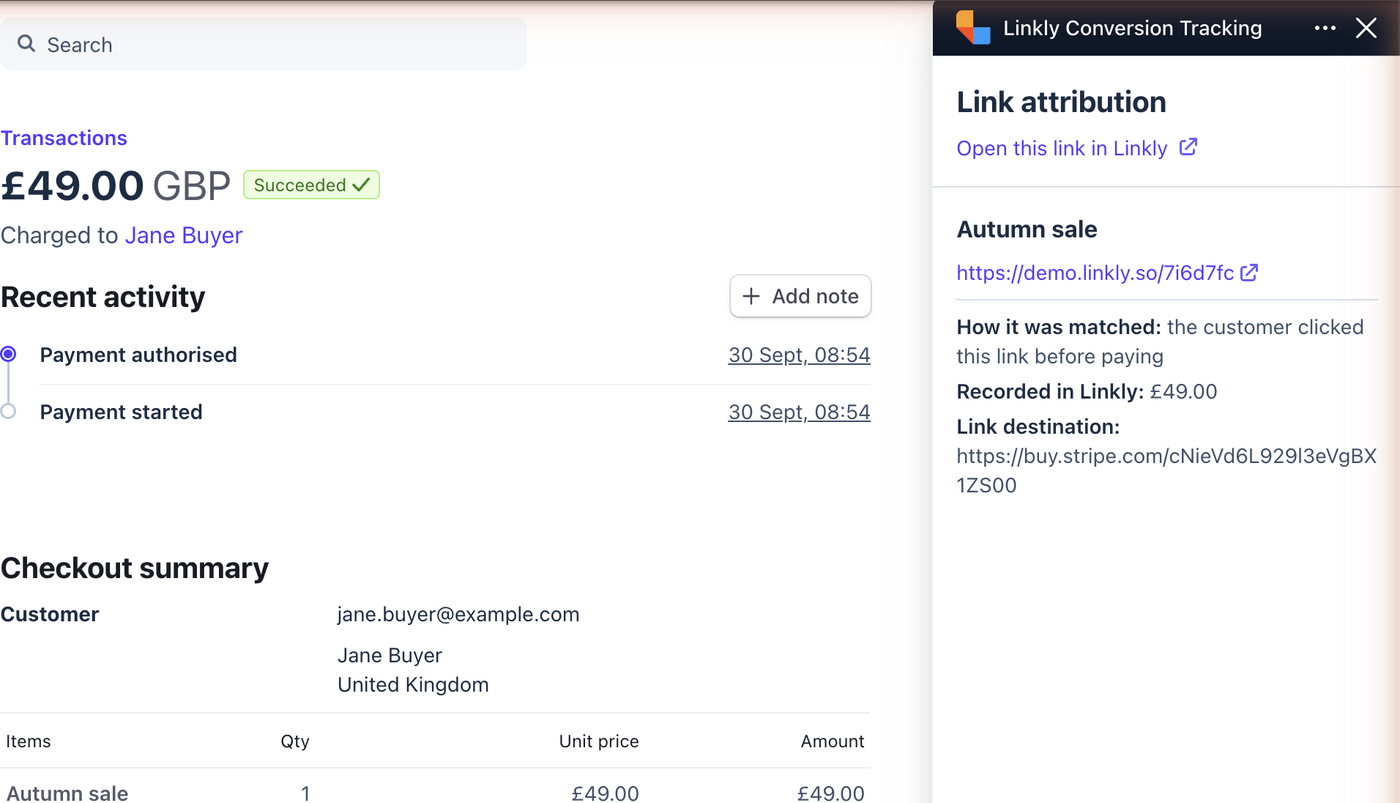
Open any payment in Stripe and the Linkly panel shows which short link it came from, how it was matched, the amount recorded, and a link to that link's analytics in Linkly. For a renewal it shows the link that first brought the customer in.
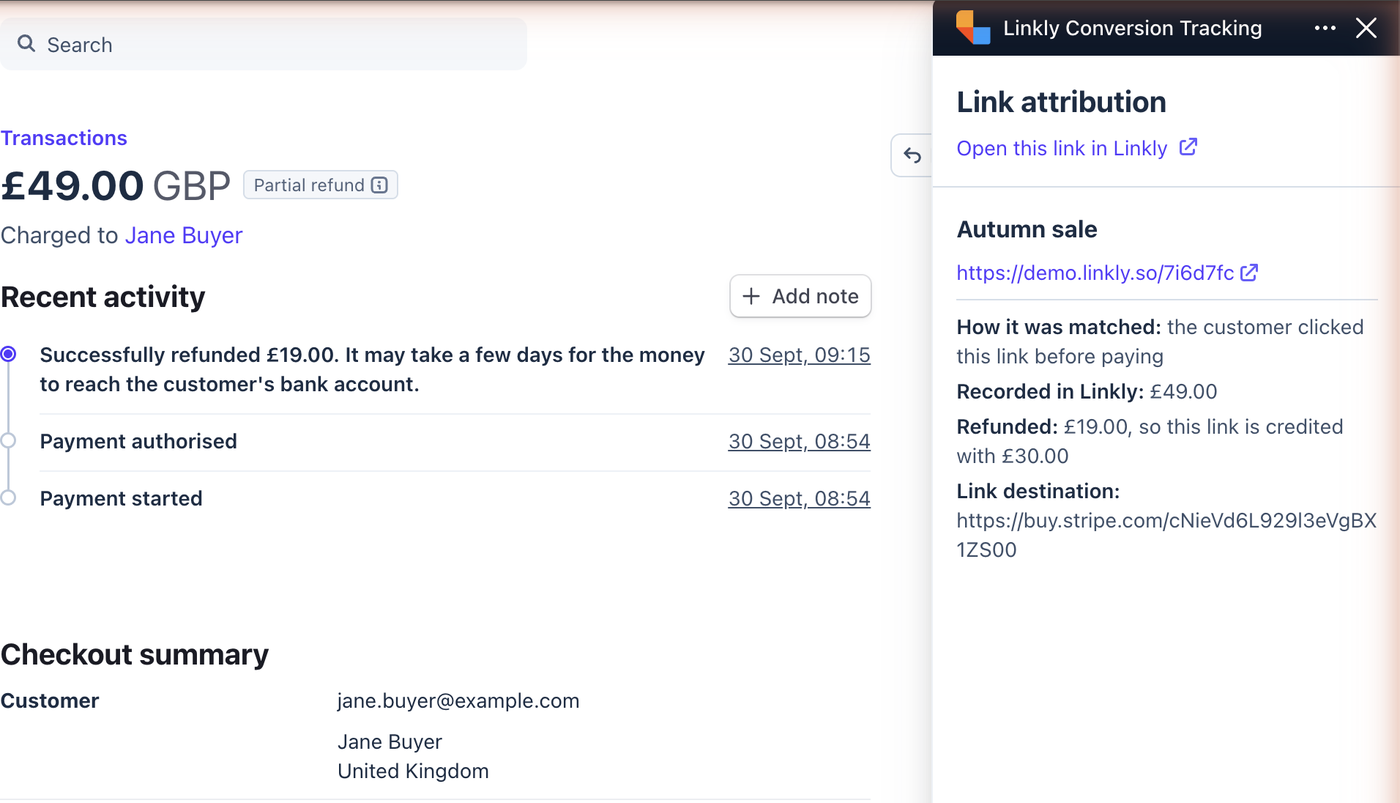
When a payment is refunded, in full or in part, the panel shows the refund and what the link is still credited with.
Disconnect
Open the app's settings in Stripe and click Disconnect, or uninstall the app. Either one stops recording immediately. Conversions already recorded stay in your reports.
Troubleshooting
Payments aren't appearing. Check that conversion tracking is on for the link, then click the short link yourself and confirm the Stripe address contains client_reference_id=linkly_. If it shows your own value instead, use the metadata method.
The panel says "Connect your Linkly workspace". The app is installed but no workspace is connected yet. Open the app's settings in Stripe (Apps, then Installed apps, then Linkly Conversion Tracking) and click Connect to Linkly.
You can't find the app. It is listed as Linkly Conversion Tracking on the Stripe App Marketplace, free, and installs into any Stripe account you administer.
Links to a hosted invoice. A link that points at an invoice.stripe.com page can't carry a click identifier, so those payments aren't matched yet.
Get 100 short links and track 500 monthly clicks for free.