LinkedIn QR Code: Put Your Profile on a Business Card (and Count the Scans)
LinkedIn gives you a QR code for your profile, built into the app. Here's where to find it, what LinkedIn's help page says about it, and how to make a QR code that counts its scans and is ready for a business card.
Transcript
The full spoken transcript, split by chapter.
- 0:00LinkedIn's own QR code
- LinkedIn gives you a QR code for your profile. It's built into the app. Here's where to find it, and how to make one that counts its scans.
- 0:07Where to find it in the app
- Tap the search bar, then the QR code icon. Your code is on the My code tab. You can share it, or save it to your gallery.
- 0:15What LinkedIn's help page says
- LinkedIn's help page covers finding it, sharing it, saving it and scanning it. It doesn't mention scan numbers.
- 0:22Make your own in Linkly
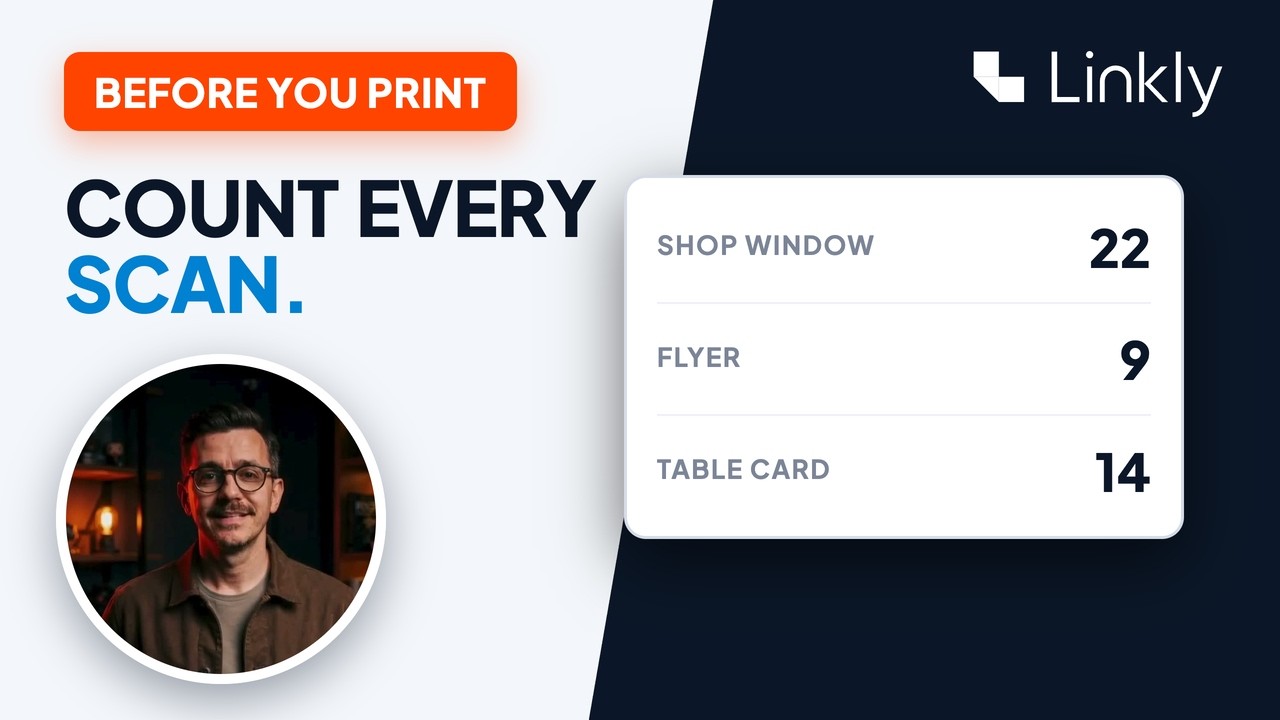
- If you want numbers, make your own. Paste your LinkedIn link into Linkly. The QR code comes with it. Style it to suit your card, then download it. A PNG works for most things, and an SVG is better for print.
- 0:35Count the scans
- And every scan is counted. You can see which country it came from, and what kind of phone scanned it. Here, iPhones scanned it most.
- 0:43Which one to use
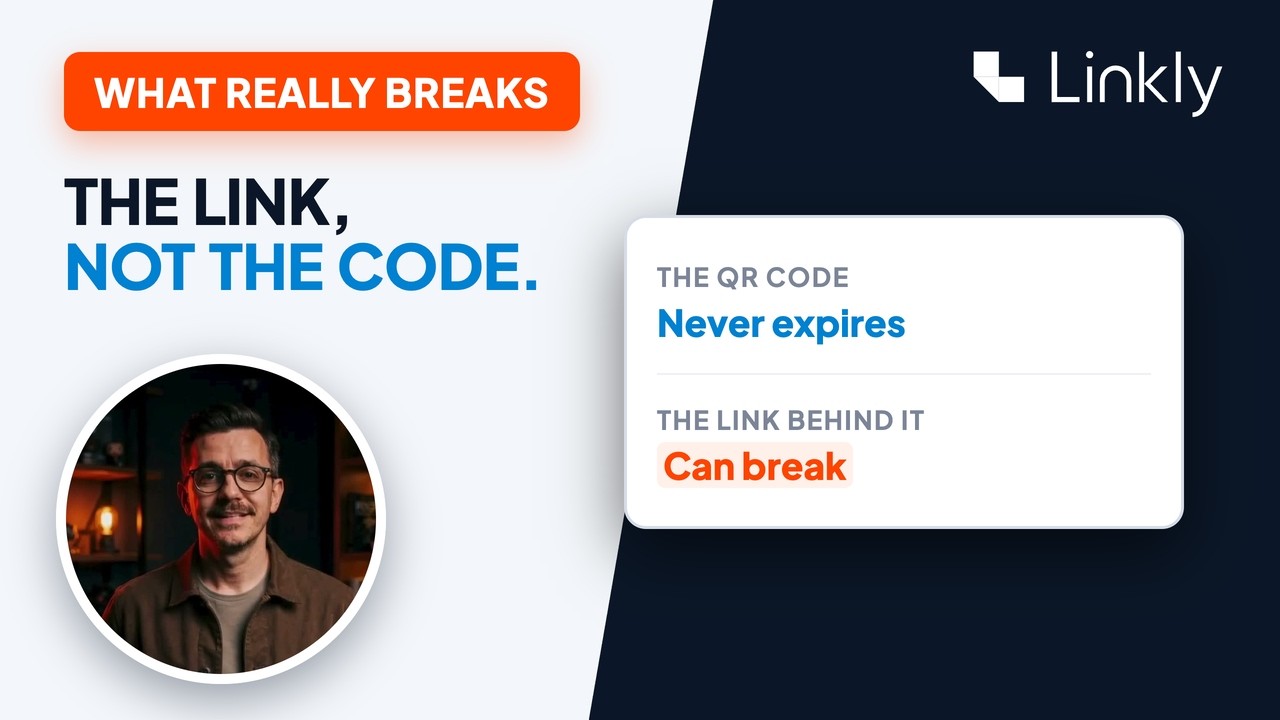
- LinkedIn's own code is quicker. Yours can be counted, and you can change where it goes later. Either way, it's a good way to connect in person. It's free to start with Linkly, and everything you need is just below this video.